If you are an employee of the Food Corporation of India, one portal manages almost everything related to your job — your salary slips, leave applications, service records, attendance, promotion details, and much more. That portal is FCI HRMS, and this is your complete guide to using it in 2026.
Whether you are a depot employee, a clerical staff member, an officer, or a manager — this guide covers every feature, every step, and every common problem you might face on the portal.
What is FCI HRMS?
FCI HRMS stands for Food Corporation of India Human Resource Management System. It is the official digital HR platform launched by FCI to manage all employee-related services online — replacing the old system of physical files, manual registers, and repeated visits to HR offices.
The portal is available at hrmsfci.in and is powered by Konnect, developed to serve the large and geographically dispersed workforce of one of India’s biggest public sector undertakings.
Before FCI HRMS existed, getting a salary slip meant visiting the accounts section. Applying for leave required physical forms. Checking your service history meant digging through paper records. All of that is now done in a few clicks from a laptop or mobile phone.
FCI HRMS Quick Reference
| Feature | Details |
| Official Portal URL | hrmsfci.in |
| ERS Sub-Portal | ers.hrmsfci.in |
| Organisation | Food Corporation of India (FCI) |
| Technology Partner | Konnect |
| Who Can Access | Regular FCI employees, managers, competent authorities, retirees |
| Mobile App | Android (Google Play Store) + iOS (via HRMS official portal) |
| Login Methods | Employee ID + Password + Captcha (web) | MPIN (mobile app) |
| HRMS Support Phone | 011-43527574 | 011-23411825 |
| HRMS Support Email | hrmssupport.fci@gov.in |
| Session Duration | Approximately 1 hour per login (OAuth 2.0 token-based) |
| Self-Registration | Not available — accounts set up by HR/IT during onboarding |
Who Can Use FCI HRMS?
Not everyone can access the FCI HRMS portal. Access is limited to:
- Regular FCI Employees — Clerical staff, officers, depot employees, technical staff across all zones and regions
- Managers and Competent Authorities — For approving leave, attendance, and other subordinate requests through the Manager Self Service (MSS) dashboard
- Retired FCI Employees — For accessing service book, pension details, CPF records, and post-retirement benefits
- Temporary or Contract Staff — Generally do not receive full HRMS access unless specifically assigned by FCI IT and HR teams
Outsourced or third-party contractor staff typically do not get HRMS access.
How to Login to FCI HRMS — Step by Step
On Desktop / Laptop (Web Portal):
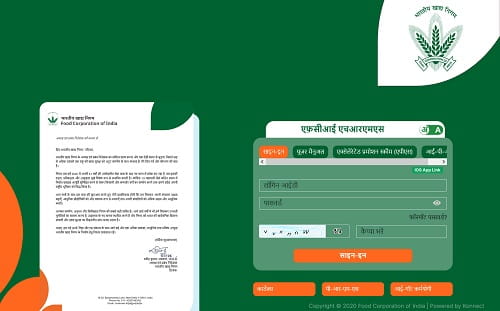
Step 1 — Open the Portal Open Google Chrome (recommended browser) and go to hrmsfci.in/login. Always use the official URL. Beware of fake websites — FCI has noted the existence of lookalike phishing pages.
Step 2 — Enter Your Login ID Type your Employee ID in the Login ID field. Always use your Employee Number — not your PF number, as these are different. Your Employee ID is available on your appointment letter, joining letter, and on your salary slip.
Step 3 — Enter Your Password Type your password. Passwords are case-sensitive. If this is your first login, use the default password provided by your IT section at the time of onboarding.
Step 4 — Complete the Captcha Enter the alphanumeric captcha code shown on screen. If the captcha is unclear, refresh it.
Step 5 — Click Sign In Click the Sign In button. You are taken to your personal employee dashboard.
Step 6 — Explore the Dashboard After login, your dashboard shows attendance status, pending leave requests, notifications, and quick links to all major modules.
Step 7 — Sign Out Safely When you are done, click your name in the top right corner and select Sign Out. Never leave sessions open on shared computers.
FCI HRMS Login via Mobile App (MPIN Method)
FCI provides an official mobile app for Android (Google Play Store) and iOS (available via the HRMS official portal). The app supports MPIN-based login — a 4-6 digit PIN that makes logging in on mobile much faster than entering a full password every time.
Setting Up MPIN for the First Time:
- Download the FCI HRMS app from Google Play Store (Android) or from the official HRMS portal (iOS)
- Open the app and tap “Login with MPIN”
- Tap “Create MPIN”
- Enter your Employee ID and Date of Birth
- Enter other required details as prompted
- An OTP is sent to your registered mobile number
- Enter the OTP and set your MPIN
- Your MPIN is now active — use it for all future app logins
Logging In with MPIN:
- Open the FCI HRMS app
- Tap “Login with MPIN”
- Enter your MPIN
- Tap Submit — you are on your mobile dashboard
The Android app has crossed 10,000+ installs on the Play Store and supports leave applications, payslip downloads, attendance tracking, and profile viewing. iOS users can also access a dedicated iOS support app from the HRMS official portal.
How to Reset Your FCI HRMS Password
Forgetting your password is common — here is how to recover access:
- Go to hrmsfci.in/login
- Click the “Forgot Password?” link on the login page
- Enter your Employee ID in the field provided
- The system will verify your identity and send a reset link or OTP to your registered email or mobile number
- Follow the steps to set a new password
- Use the new password to login immediately
If the OTP does not arrive or the reset process fails, contact your nodal officer first — they can handle most account issues faster than the central helpdesk. For technical problems that nodal officers cannot resolve, contact the HRMS support team directly.
FCI HRMS — Two Portals You Need to Know
FCI HRMS operates across two connected portals, and understanding both helps you get the most out of the system:
1. Main HRMS Portal — hrmsfci.in
This is the primary employee portal. It handles payroll, leave management, attendance, performance management, notifications, and day-to-day HR functions. Both employees (ESS — Employee Self Service) and managers (MSS — Manager Self Service) log in here.
2. ERS Sub-Portal — ers.hrmsfci.in
ERS stands for Employee Record Sheet. This sub-portal is focused entirely on service record management. It displays your complete career information in a structured format and is particularly important for officers and gazetted employees.
| Feature | Main HRMS (hrmsfci.in) | ERS Sub-Portal (ers.hrmsfci.in) |
| Salary Slip Download | ✅ Yes | ❌ No |
| Leave Application | ✅ Yes | ❌ No |
| Attendance | ✅ Yes | ❌ No |
| Service History | ✅ Basic view | ✅ Detailed ER Sheet |
| Posting History | ✅ Available | ✅ Zone/Region level detail |
| Designation History | ✅ Available | ✅ With exact dates |
| Training Records | ✅ Available | ✅ Competency assessments + certificates |
| Joining/Relieving Dates | ✅ Available | ✅ Per transfer/posting |
| Personal Details | ✅ Available | ✅ With official email ID |
How to Download Salary Slip from FCI HRMS
Getting your salary slip from FCI HRMS takes less than a minute once you are logged in.
Via Web Portal:
- Login to hrmsfci.in/login with your Employee ID and password
- On your dashboard, go to the Payroll or Salary section
- Click on Salary Slip — a calendar-based view appears
- Select the Month and Year for which you want the slip
- Click View to preview the salary slip on screen
- Click Download PDF to save it to your device
Via Mobile App:
- Login to the FCI HRMS app using your Employee ID + password or MPIN
- Tap the Salary option on your mobile dashboard
- Select the month for which you want the slip
- Tap Download Slip — the PDF saves to your device
What Your FCI HRMS Salary Slip Contains
The FCI salary slip is a comprehensive document showing:
| Section | Details |
| Employee Details | Name, Employee ID, Designation, Department, Zone/Region |
| Pay Structure | IDA (Industrial DA) or CDA (Central DA) structure depending on your cadre |
| Basic Pay | Your current basic pay as per pay revision |
| Dearness Allowance (DA) | Industrial DA or Central DA — revised periodically |
| HRA | House Rent Allowance based on city classification |
| Other Allowances | Transport Allowance, Special Allowance, Overtime (if applicable) |
| CPF/EPF Deduction | Contributory Provident Fund or EPF monthly contribution |
| Income Tax (TDS) | Tax deducted at source based on your declaration |
| Other Deductions | Loan recoveries, LIC, medical fund, etc. |
| Gross Pay | Total earnings before deductions |
| Net Pay | Amount credited to your bank account |
Beyond monthly salary slips, FCI HRMS also gives you access to:
- Form 16 — Annual TDS certificate for ITR filing
- Income Tax Computation Sheet — Detailed tax calculation for the financial year
- CPF/EPF Statement — Provident fund contribution and balance history
- Arrear Slips — When arrears are paid due to pay revision or DA revision
How to Apply for Leave on FCI HRMS
The leave module on FCI HRMS is one of the most used features. Here is how it works:
- Login to hrmsfci.in
- Go to the Leave Module from your dashboard
- Click Apply for Leave
- Select the Leave Type — see leave types listed below
- Enter the From Date and To Date
- Enter the Reason for leave in the text box
- Add any remarks for your reporting officer
- Click Submit — the application is forwarded to your reporting officer
- Your reporting officer receives a notification and approves or rejects it
- You receive a notification of the decision
- Your leave balance updates automatically after approval
Leave is typically processed within 1 to 3 working days depending on your reporting officer’s response time. Apply at least 2 days in advance and include clear remarks to avoid delays or rejections.
FCI HRMS Leave Types
FCI employees can apply for the following leave types through the HRMS portal:
| Leave Type | Details |
| LAP — Leave on Average Pay | Earned leave — primary leave type for all FCI employees |
| LHAP — Leave on Half Average Pay | Half-pay leave — accrued annually |
| Casual Leave (CL) | Short-duration leave for personal needs |
| Medical Leave | Leave due to illness — medical certificate required |
| Maternity Leave | For female employees — up to 180 days |
| Paternity Leave | For male employees at the time of childbirth |
| Child Care Leave (CCL) | For female employees with children under 18 |
| Extraordinary Leave (EL) | Leave without pay in special circumstances |
| Commuted Leave | Converting LHAP to full-pay leave with medical certificate |
| Leave Not Due (LND) | Advance leave against future accrual |
All Services Available on FCI HRMS
Employee Self Service (ESS) Features:
Payroll and Salary:
- Monthly salary slip download
- Form 16 and income tax computation download
- CPF/EPF statement access
- Arrear slip download
- Pay revision history
Leave and Attendance:
- Apply for leave (all types)
- Check leave balance for each leave type
- View leave history and approval status
- Withdraw a pending leave application
- View attendance records (biometric integration)
- Apply for attendance regularisation (for missed punches or off-site work)
- View organizational holiday calendar
Service Records (ERS):
- Complete personal profile — name, date of birth, official email, cadre, category
- Full posting history — Zone, Region, and office details
- Designation history — every post held with exact appointment dates
- Training records — courses attended, competency assessments, certificates downloaded
- Transfer joining and relieving dates
Performance and Career:
- Performance Management System (PMS) — view appraisal records and ratings
- Accelerated Promotion Scheme (APS) — check promotion eligibility and status
- Promotion history and increment details
- Seniority position in promotion list
Documents and Compliance:
- Immovable Property Return (IPR) filing — mandatory for eligible employees
- Upload and manage documents
- Pension-related services for retiring and retired employees
- CPF settlement tracking for departing employees
Profile and Notifications:
- View and update personal profile details
- Submit profile correction requests (approved by nodal officer)
- Organisation notifications — policy changes, circulars, events
- Training session notifications and calendar
- Transfer order notifications
Manager Self Service (MSS) Features:
Managers and Competent Authorities get an additional MSS dashboard where they can:
- View all subordinate employee details
- Approve or reject leave applications
- Approve attendance regularisation requests
- Track team attendance and leave patterns
- Access performance data for team members
- Generate HR reports for their team
FCI HRMS — Biometric Attendance Integration
FCI has integrated biometric systems with the HRMS portal across its offices, depots, and regional offices. This means your daily attendance — clocking in and clocking out — is automatically recorded in HRMS through the biometric device at your workplace.
On your HRMS dashboard, you can view your complete attendance record — present days, absent days, late arrivals, and early departures — all fetched in real time from the biometric system.
If there is ever a discrepancy — for example, the biometric failed to read your fingerprint, or you were on official duty outside the office — you can submit an Attendance Regularisation Request through HRMS. Your reporting officer reviews and approves this correction, which then updates your attendance record.
FCI HRMS Training and Development Module
The HRMS portal is not just about payroll and leave. FCI uses it to manage employee learning and development as well. Through the Training module, employees can:
- View all scheduled training programs — workshops, seminars, and short-term courses
- Enroll for upcoming training sessions
- Receive notifications about mandatory training requirements
- Download training completion certificates after attending courses
- View competency assessment records
- Track training hours completed during the financial year
This integration ensures FCI has a complete view of every employee’s skill development alongside their service record and performance data.
FCI HRMS Performance Management System (PMS)
FCI runs an annual Performance Management System through the HRMS portal for all employees. The PMS module handles:
- Annual Performance Appraisals — employees and managers complete assessments digitally
- Goal Setting — KPIs and targets set at the start of the financial year
- Mid-Year Review — mid-cycle performance check
- Final Rating — year-end rating assigned by the Competent Authority
- Accelerated Promotion Scheme (APS) — eligibility is linked to PMS ratings
How to Check Service Record on FCI HRMS (ERS)
The Employee Record Sheet (ERS) at ers.hrmsfci.in is the most important career document for FCI employees. Here is how to access it:
- Login to hrmsfci.in with your Employee ID and password
- Look for the ERS or Service Record link on your dashboard, or directly visit ers.hrmsfci.in
- Your ER Sheet loads with:
- Your complete personal details including Date of Birth and official Email ID
- Division, Section, Cadre, Category details
- Mode of joining
- Complete posting history — every Zone, Region, and office you served in
- All designations held with exact appointment dates
- Training and competency record
- Transfer joining and relieving dates
If any information on your ERS is incorrect, do not attempt to edit it directly. You must raise a correction request and submit it to your DDO or regional HR office for approval and update.
FCI HRMS for Retired Employees
Retired FCI employees are not cut off from HRMS. FCI extends access to retirees so they can manage their post-retirement benefits digitally:
- Access and download service book records
- View pension-related details and pension processing status
- Check CPF (Contributory Provident Fund) settlement status
- Access post-retirement medical coverage information
- Download historical salary slips needed for pension calculation
- Track travelling allowance entitlements (available for a few years post-retirement)
Retired employees log in through the same portal — hrmsfci.in — using credentials provided at the time of retirement processing.
Common Problems and Solutions
| Problem | Cause | Solution |
| Login page not opening | Browser cache issue or wrong URL | Clear browser cache; use Google Chrome; try incognito mode |
| Wrong Employee ID error | Using PF number instead of Employee Number | Use Employee Number from your appointment letter — not PF number |
| Account locked | Multiple wrong password attempts | Wait 30 minutes for auto-unlock; contact nodal officer if still locked |
| OTP not received | Mobile number not registered or outdated | Contact your nodal officer to update registered mobile number |
| Captcha not loading | Slow internet or browser issue | Refresh the page; use Chrome; check internet connection |
| Salary slip not showing | Payroll not yet processed | Wait 3-5 working days after month end; contact accounts section |
| Cannot change bank details | Only nodal officers can update bank details | Raise a request with your nodal officer — upload required documents |
| Leave showing wrong balance | Data not yet updated | Give it 24 hours after approval; contact HR if it persists beyond that |
| MPIN app not logging in | Wrong MPIN entered or account issue | Use Employee ID + Password option; reset MPIN if needed |
| Service record showing wrong data | Data entry error in ERS | Contact regional HR office or raise a correction request through ERS |
FCI HRMS Helpdesk — Contact Details
If you face any issue that your nodal officer cannot resolve, contact the FCI HRMS central support team directly. Always include your Employee Number, Name, Office name, and a description of the problem in all communications.
| Support Channel | Contact |
| HRMS Support Phone 1 | 011-43527574 |
| HRMS Support Phone 2 | 011-23411825 |
| HRMS Support Email | hrmssupport.fci@gov.in |
| Primary Support | Your Nodal Officer (fastest resolution for most issues) |
| Portal URL | hrmsfci.in/login |
FCI HRMS Security Tips
Your FCI HRMS account contains sensitive personal and financial data. Keep it safe:
- Never share your password with anyone — FCI IT or HR will never ask for your password
- Use a strong password — combine uppercase, lowercase, numbers, and symbols
- Avoid simple passwords — never use your date of birth, name, or Employee ID as password
- Log out after every session — especially on shared office computers
- Do not save your password in browser auto-fill on shared devices
- If you suspect your account has been accessed without your knowledge, contact HRMS support immediately and reset your password
- Never use fake HRMS websites — always type hrmsfci.in directly in the browser
About Food Corporation of India — The Organisation Behind FCI HRMS
FCI (Food Corporation of India) was established in 1965 under the Food Corporations Act 1964. It is one of the largest public sector undertakings in India, operating under the Ministry of Consumer Affairs, Food and Public Distribution.
FCI’s core responsibilities include:
- Managing price-support operations for farmers
- Food grain procurement and storage across India
- Distributing food grains through the Public Distribution System (PDS)
- Maintaining strategic buffer stocks for national food security
- Stabilizing market prices of essential food grains
With operations spanning every state and Union Territory, FCI employs a massive workforce across its zonal offices, regional offices, district offices, and grain storage depots. The FCI HRMS portal brings this entire geographically distributed workforce under a single digital HR system.
Frequently Asked Questions — FCI HRMS
Q1. What is the official URL for FCI HRMS?
Ans: The official portal is hrmsfci.in or www.hrmsfci.in/login. The ERS service record sub-portal is at ers.hrmsfci.in. Do not use any other website claiming to be FCI HRMS.
Q2. Can I register myself on FCI HRMS?
Ans: No. Self-registration is not available. Your FCI HR and IT team sets up your account during onboarding and shares your Employee ID and default password with you. If your account has not been created, contact your regional HR office.
Q3. What is MPIN on FCI HRMS mobile app?
Ans: MPIN is a 4-6 digit Mobile PIN used to login to the FCI HRMS mobile app quickly without entering your full password every time. You set it up during first-time app registration using your Employee ID, date of birth, and OTP verification.
Q4. Can I download salary slips for past months and years?
Ans: Yes. All past salary slips are available in the Payroll section of your HRMS dashboard. You can select any past month and year to download older slips. It is a good practice to download and save the last 6-12 months of salary slips, as banks usually ask for a minimum of 6 payslips for loan applications.
Q5. Why does my login keep failing even with the correct password?
Ans: Common reasons are: using the wrong Employee ID format (use Employee Number, not PF number), a browser captcha loading issue, or your account may have been temporarily locked after multiple wrong attempts. Try Chrome browser, clear cache, and wait 30 minutes before retrying. Contact your nodal officer if the problem continues.
Q6. Can I update my bank account details on FCI HRMS?
Ans: No. Bank account details cannot be edited directly by employees on the portal. Only your nodal officer can process a bank detail change request after verifying your documents. Submit a written request with required documents to your nodal officer. Incomplete documents typically delay the process by 5-7 working days.
Q7. What is the difference between ESS and MSS on FCI HRMS?
Ans: ESS (Employee Self Service) is the dashboard for regular employees — where you manage your own leave, salary, attendance, and profile. MSS (Manager Self Service) is an additional dashboard for managers and Competent Authorities — where they approve subordinate requests, track team attendance, and manage HR workflows for their team. Both are accessible from a single login.
Q8. What is the ERS portal (ers.hrmsfci.in)?
Ans: ERS stands for Employee Record Sheet. It is a sub-portal at ers.hrmsfci.in focused on detailed service record management — showing your complete career history including every posting, designation, transfer, training, and promotion with exact dates. It is the digital equivalent of your physical service book.
Q9. Does FCI HRMS work on mobile phones?
Ans: Yes. FCI HRMS has a dedicated mobile app for Android (Google Play Store) and iOS (via the HRMS official portal). The app supports leave application, payslip download, attendance tracking, and profile viewing. You can also access hrmsfci.in through any mobile browser.
Q10. What should I include when emailing HRMS support?
Ans: Always include your Employee Number, Full Name, Office Name (with Zone and Region), and a clear description of the problem. Attach any screenshots if relevant. Send to hrmssupport.fci@gov.in or call 011-43527574 or 011-23411825.