Indian Railways HRMS — The Complete Guide for Every Railway Employee (2026)
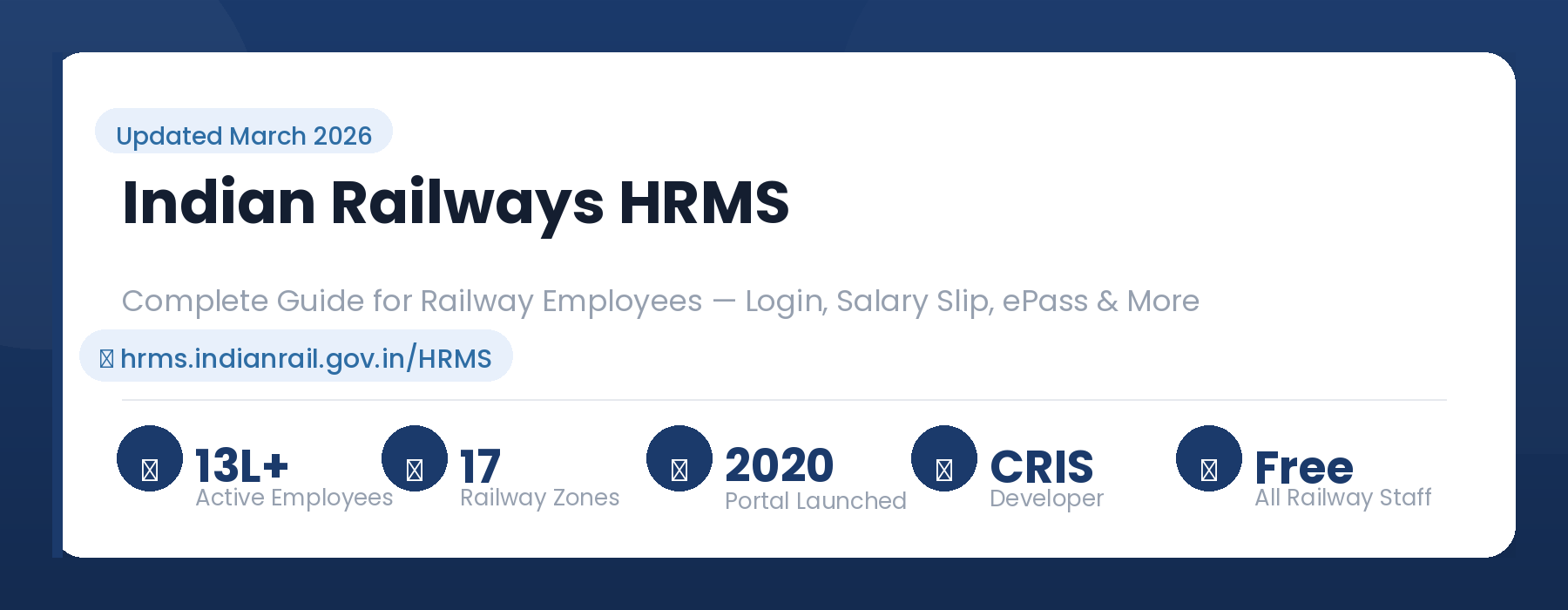
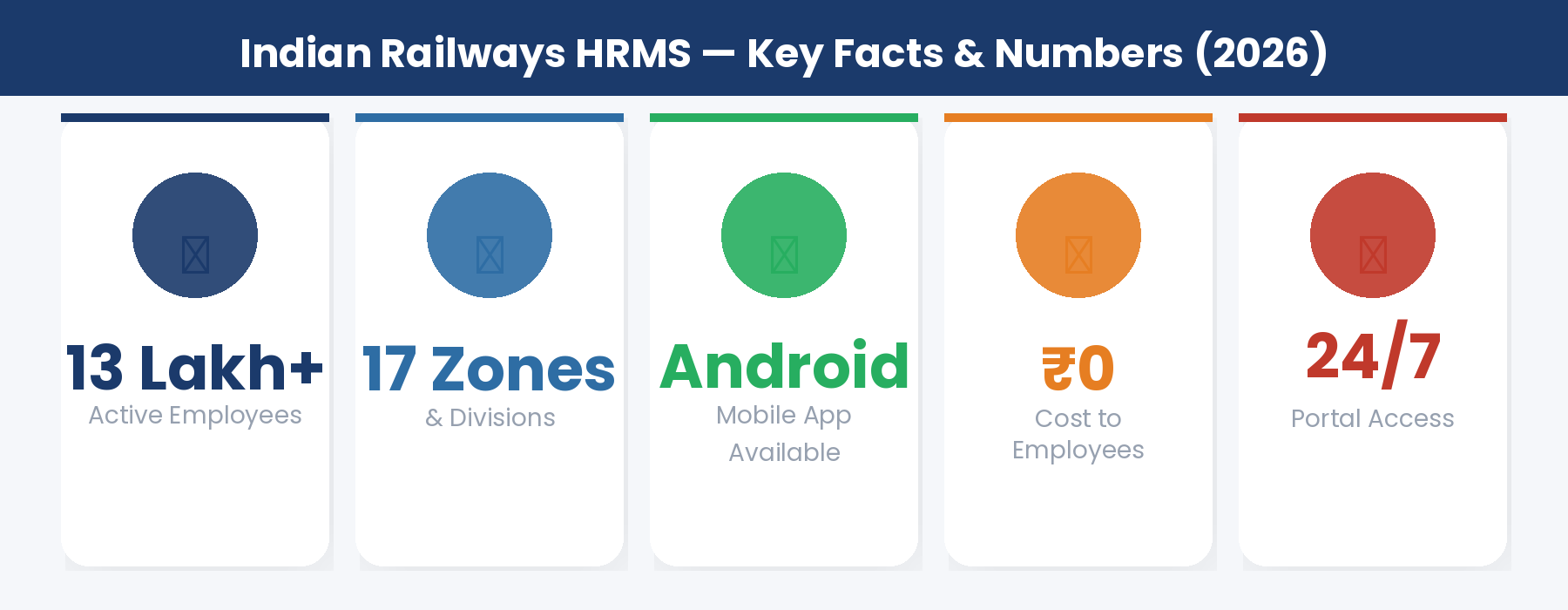
Indian Railways is one of the largest employers in the world. With over 13 lakh employees across 17 railway zones, hundreds of divisions, workshops, production units, and administrative offices — managing HR for such a vast organisation was once a massive challenge.
Today, that challenge has been solved. The Indian Railways HRMS — Human Resource Management System — is a centralised digital portal where every railway employee can access salary slips, apply for leave, view service records, apply for ePass, check PF details, and much more. All of this, from any device, at any time.
This comprehensive guide covers everything you need to know about the Railway HRMS portal — from first-time login to downloading your salary slip to applying for a railway ePass.
What is Indian Railways HRMS?
Indian Railways HRMS stands for Human Resource Management System. It is an official web-based platform developed by CRIS — the Centre for Railway Information Systems — for Indian Railways employees and pensioners.
The portal was launched on 26 November 2020. Its goal was to replace paper-based HR processes with a fully digital, real-time system accessible from anywhere.
Official URL: hrms.indianrail.gov.in/HRMS
⚠️ Important: Fake HRMS websites have been reported. Indian Railways officially warns all employees to use ONLY hrms.indianrail.gov.in/HRMS. Never enter your credentials on any other website.
Who Can Use Indian Railways HRMS?
- All active serving Indian Railways employees — across all departments, zones, divisions, and grades
- Gazetted officers and non-gazetted staff both
- Employees in Railway Production Units, Workshops, RDSO, Metro Rail, and other Railway-controlled organisations
- Retired Indian Railways employees (pensioners) — through the Retired Employee Registration process
How to Login to Indian Railways HRMS — Step by Step
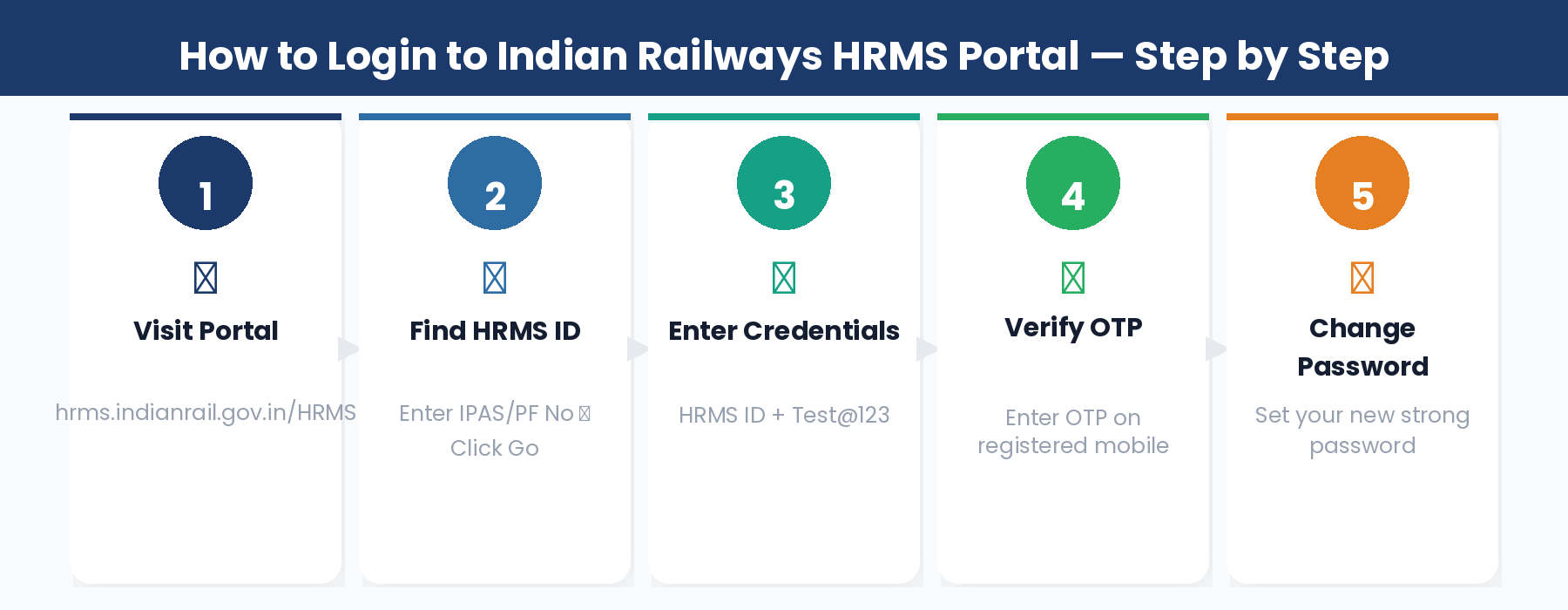
- Open your browser and go to: hrms.indianrail.gov.in/HRMS
- The login page loads. You will see fields for User ID, Password, and Captcha.
- Enter your HRMS Login ID in the User ID field.
- Enter your Password. First-time users use the default: Test@123.
- Enter the Captcha code shown on screen — this is case-sensitive.
- Click the Login button.
- An OTP is sent to your registered mobile. Enter it in the box.
- Click Verify OTP. You are now on your dashboard.
- On first login, the system asks you to change your password. Do this immediately and keep it safe.
✅ Tip: Always use a strong password — mix of uppercase letters, lowercase letters, numbers and special characters. Rotate your password every 90 days as a security best practice.
First Time Login — How to Find Your HRMS ID
If you do not know your HRMS Login ID yet:
- Go to hrms.indianrail.gov.in/HRMS
- Click “Need Help for Login?” on the login page.
- Enter your IPAS ID or PF Number (printed on your salary slip) and click Go.
- The system shows your HRMS ID, name, designation, department, and registered mobile.
- Note your HRMS ID. Go back to login, enter it as User ID with password Test@123.
⚠️ Important: If your details are not showing, your record has not been entered in HRMS yet. Contact your Personnel Branch Dealing Clerk or Bill Section to get your record added.
Forgot Password — How to Reset
- Go to hrms.indianrail.gov.in/HRMS
- Click the “Forgot Password?” link.
- Enter your HRMS Login ID and click Submit.
- An OTP is sent to your registered mobile. Enter it.
- Set a new strong password and log in.
⚠️ Important: If your mobile number has changed or was never registered, you will not receive the OTP. Contact your Establishment / HR office to update your mobile number in the HRMS database first.
All Features and Modules — Complete List
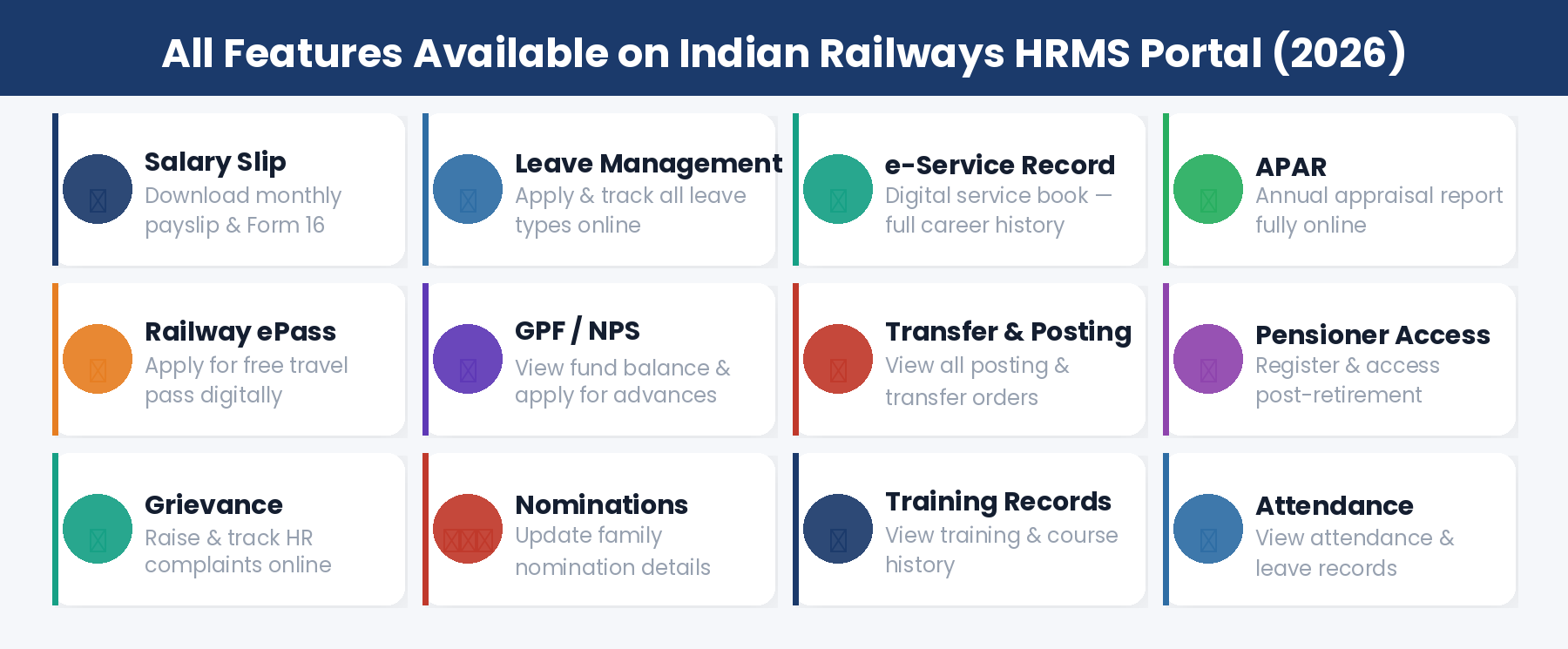
1. Employee Master Module
Your complete digital profile — name, date of birth, date of joining, employee ID, designation, department, railway zone, division, current posting, pay level, and contact details. View and raise update requests through the appropriate channels.
2. Electronic Service Record (e-SR)
Your digital service book containing all postings, promotions, transfers, increments, awards, training records, disciplinary actions, and family nominations. Review regularly to ensure all entries are correct — errors affect pension calculation and career progression.
3. Salary Slip and Pay Details
Download monthly salary slips directly from the portal. Shows basic pay, DA, HRA, Transport Allowance, and all deductions — GPF, NPS, income tax, CGEIS. Download current and past months anytime.
4. Leave Management
Apply for all leave types — Casual Leave, Earned Leave, Leave on Medical Certificate (LMC), Maternity Leave, Paternity Leave, Child Care Leave, Commuted Leave, and more. Check leave balance in real time and track approval status online.
5. APAR — Annual Performance Appraisal Report
Gazetted officers submit self-appraisal online. Reporting and reviewing officers fill assessments digitally. The entire workflow — submission, review, countersigning, and grading — happens on the portal. No paper forms.
6. Railway ePass — Apply for Travel Pass Online
Apply for free travel passes for yourself and your family completely online. Family declaration, pass type selection, journey details, and ePass generation — no need to visit the pass clerk’s office.
7. GPF / NPS Details
Pre-NPS employees: view GPF account balance, transaction history, apply for advances. Post-2004 NPS employees: view NPS account and contribution history. Track all advances and withdrawals online.
8. Transfer and Posting Records
View your complete transfer and posting history. Transfer orders are updated digitally and visible to employees in real time.
9. Retirement and Settlement
Employees approaching superannuation can initiate retirement processes digitally — pension paperwork, settlement applications, final settlement details. Reduces multiple office visits before retirement.
10. Grievance Redressal
Raise HR-related complaints through the portal. Grievances are routed to the appropriate authority and status tracked online.
11. Nominations
View and update family nomination details for GPF, gratuity, and other service benefits.
12. Attendance Records
View attendance records and leave availed. Departmental clerks can regularise attendance or correct missed punches.
How to Download Your Salary Slip
- Login to hrms.indianrail.gov.in/HRMS
- On your dashboard, go to Salary Slip or Employee Self Service → Financial Details.
- Click on Salary Slip.
- Select the Pay Period — choose month and year.
- Click View or Download.
- The salary slip opens as a PDF. Click Download to save.
✅ Tip: Form 16 (TDS certificate for income tax filing) may be available through the RESS system or your division’s pay accounts office. Check with your accounts section if you cannot find it on HRMS.
How to Apply for Leave
- Login to the portal.
- Go to the Leave Management section on your dashboard.
- Click “Apply for Leave.”
- Select the type of leave — Casual Leave, Earned Leave, LMC, etc.
- Select From Date and To Date.
- Enter the reason for leave.
- For Medical Leave (LMC), attach a medical certificate from a registered practitioner.
- Click Submit. Note your leave application reference number for tracking.
Electronic Service Record (e-SR) — How to View and Update
- Login to the portal.
- Navigate to Service Record or e-SR from the dashboard.
- Your complete service history is displayed.
- Download the e-SR as a PDF for your records.
⚠️ Important: To correct entries in your e-SR, contact your HR/establishment dealing clerk. You cannot edit it yourself. Accurate e-SR records are critical for your retirement benefits and pension calculation.
APAR — Annual Performance Appraisal Report
- Employee fills in self-appraisal section on the portal within the stipulated time.
- Reporting officer fills their assessment — numerical rating and descriptive remarks.
- Reviewing officer adds remarks and countersigns.
- Employee receives a notification when APAR has been processed.
- Grading is communicated through the portal, maintaining full transparency.
Railway ePass — How to Apply for Your Travel Pass
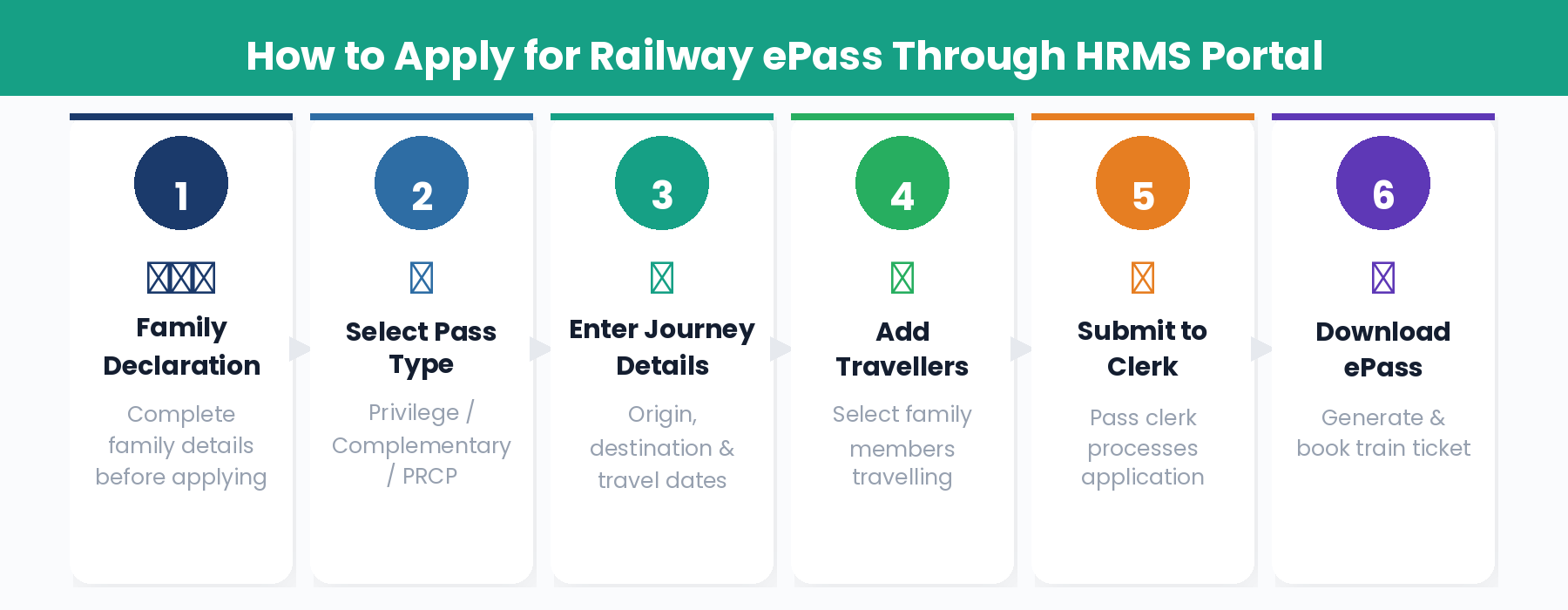
🔔 Before You Apply — Complete Family Declaration First
Before applying for any pass, complete the Family Declaration on the HRMS portal. This tells the system who your eligible family members are — spouse, children, dependent parents. Without this, pass applications cannot be processed.
Types of Passes Available
- Privilege Pass — Annual pass entitlement based on grade
- Complementary Pass — for specific travel needs
- School Pass — for children travelling to/from school or college
- Post Retirement Complimentary Pass (PRCP) — for retired employees
- Widow Pass — for spouse of deceased railway employee
How to Apply — Step by Step
- Login to hrms.indianrail.gov.in/HRMS
- Go to the Pass section on your dashboard.
- Verify your Family Declaration is complete and updated.
- Click “Apply for Pass” and select the pass type.
- Enter journey details — origin, destination, travel dates, class of travel.
- Select family members who will be travelling.
- Submit the application to the Pass Clerk for processing.
- After approval, download your ePass from the portal.
- Use the ePass to book train tickets at the reservation counter.
✅ Tip: Split Pass: If your journey has multiple legs, apply for a Split Pass through the Split Pass module on the HRMS portal.
Retired Employee Registration
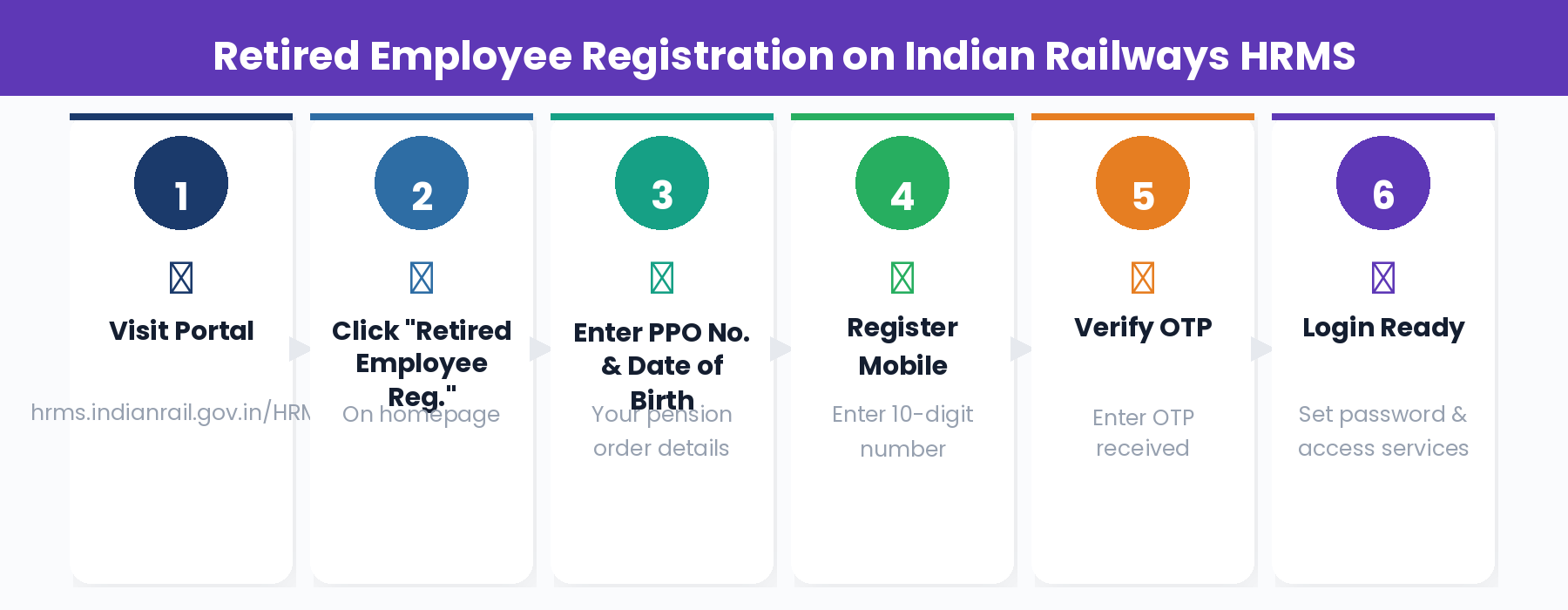
- Go to hrms.indianrail.gov.in/HRMS
- Click “Retired Employee Registration” on the login page.
- Enter your PPO Number and Date of Birth.
- System verifies your details against railway records.
- Register your 10-digit mobile number.
- Enter the OTP sent to your mobile.
- Your HRMS login credentials are generated.
- Login and set a new password on first login.
⚠️ Important: PPO number is on your Pension Payment Order received at retirement. If you cannot find it, contact the railway division office from which you retired. If mobile is not in system, submit a Mobile Number Registration Form to your former railway office.
Zone-Wise HRMS Helpdesk Numbers — 2026
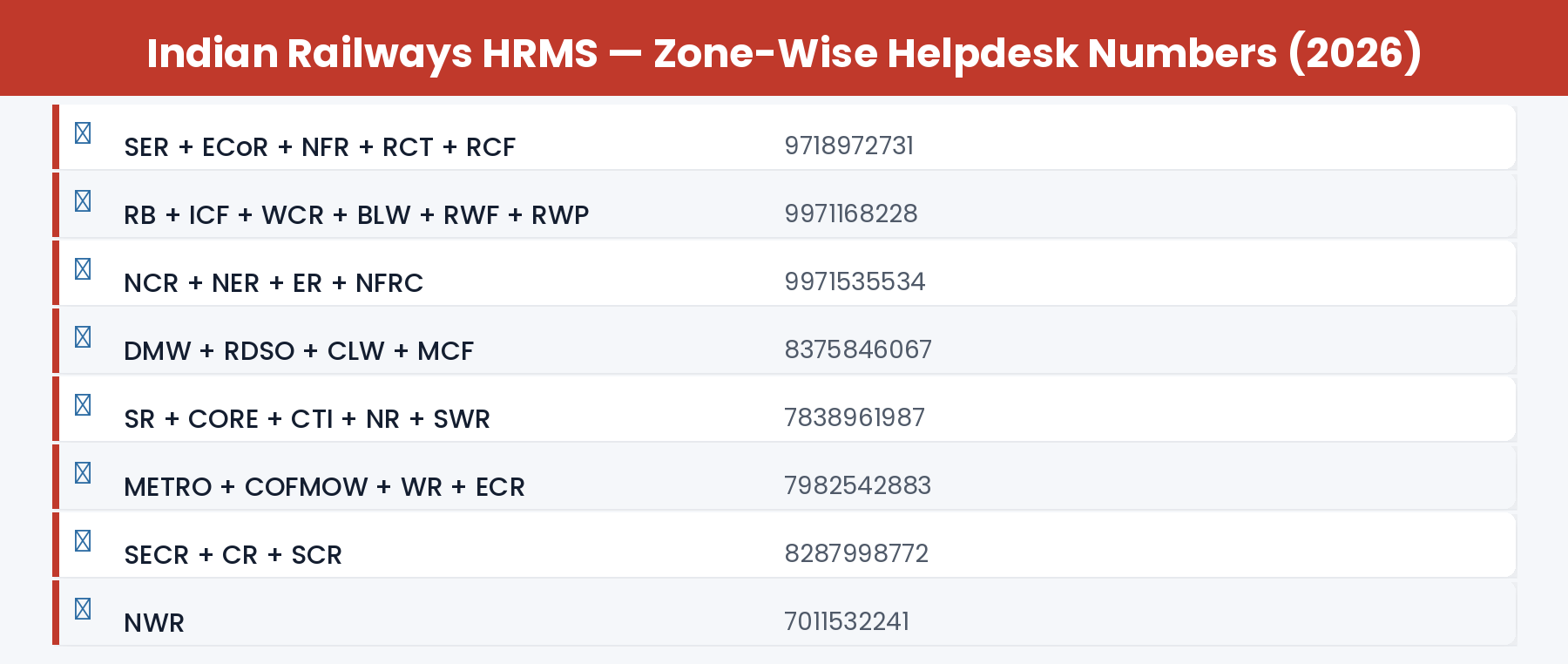
Railway HRMS Mobile App
📱 Official Railway HRMS Mobile App
App Name: HRMS Employee Mobile App
Developer: CRIS (Centre for Railway Information Systems)
Platform: Android (Google Play Store)
How to download: Search “HRMS Indian Railways” on Google Play Store
Features: Leave application, salary slip, service record, ePass, PF details
Common Errors and How to Fix Them
Frequently Asked Questions
Q: What is the official URL for Indian Railways HRMS?
The official URL is hrms.indianrail.gov.in/HRMS. Always type this directly in your browser. Never use any other website claiming to be the Railway HRMS portal.
Q: What is my HRMS ID and where do I find it?
Your HRMS ID is your login username. Find it by visiting the portal and entering your IPAS ID or PF Number (printed on your salary slip) in the ‘Need Help for Login?’ section.
Q: What is the default password for first-time login?
The default password is Test@123. After logging in, you will be required to change it to a new password of your choice.
Q: Can retired railway employees use the HRMS portal?
Yes. Retired employees register using the ‘Retired Employee Registration’ option with their PPO number and date of birth. After registration, they can access PRCP passes and pension-related services.
Q: How do I apply for a railway ePass on HRMS?
Login to the portal, complete your Family Declaration first, then go to the Pass section, select pass type, enter journey details, and submit. The Pass Clerk processes your application and you download the ePass after approval.
Q: My salary slip is not showing on HRMS. What should I do?
Salary slips appear after the monthly payroll is processed by your Bill Section. If missing after 5-7 days from the usual pay date, contact your Bill Section or zone helpdesk.
Q: Can I apply for leave from the HRMS mobile app?
Yes. The official Railway HRMS mobile app (Android, Google Play Store, developed by CRIS) supports leave application and most other HRMS functions.
Q: What if my IPAS ID is not found on the HRMS portal?
This means your record has not been entered into HRMS yet. Contact your Personnel Branch Dealing Clerk or Accounts/Bill Section and ask them to enter your details.