Manav Sampada eHRMS Portal – Login, Registration, Update, Status
If you are a government employee in Uttar Pradesh — or in any of 22+ other Indian states — there is a good chance your HR life runs on one platform: Manav Sampada.
“Manav Sampada” means “Human Resource” in Hindi. It is the official Electronic Human Resource Management System (eHRMS) developed by the National Informatics Centre (NIC) and managed in UP by UPSDC. Over 16 lakh employees in UP alone depend on this portal daily.
What is Manav Sampada eHRMS?
Manav Sampada is a centralised, web-based Human Resource Management System developed by NIC (National Informatics Centre) under the Government of India. Originally built for Himachal Pradesh, it was then adopted by UP and 22+ other states.
Official URL for UP: ehrms.upsdc.gov.in
💡 Key Fact
Manav Sampada UP manages records for over 16 lakh government employees across 90+ state departments including Basic Education, Health, Revenue, Police, Panchayati Raj, Urban Development, Higher Education, Irrigation, and Public Works Department.
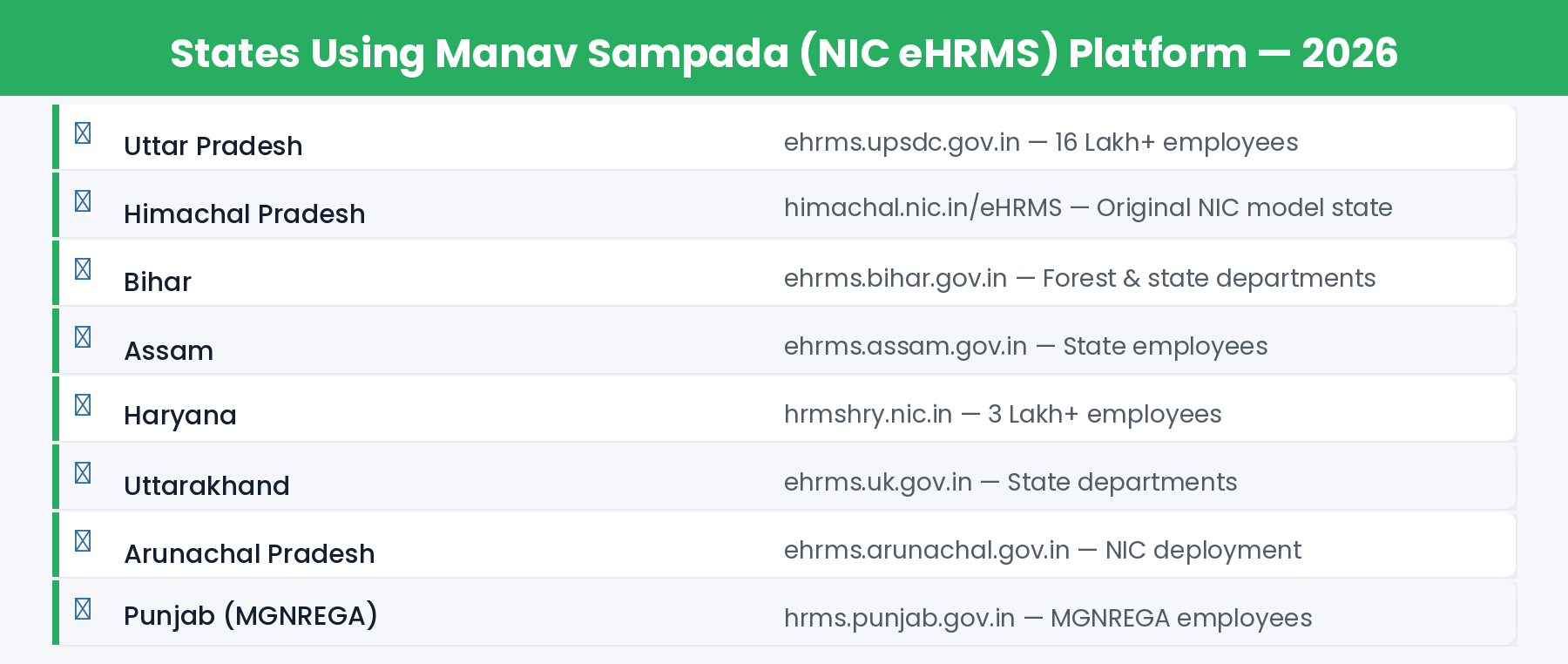
Which States Use Manav Sampada (NIC eHRMS)?
Who Can Use Manav Sampada UP?
- Currently serving employees of the Uttar Pradesh State Government
- Your department must be registered and onboarded on the eHRMS portal
- Your service details must have been entered by your department’s Nodal Officer
- You must have a valid 8-digit Employee ID (HRMS Employee Code)
⚠️ Important: Self-registration is NOT available on Manav Sampada. Only authorised Nodal Officers can register employees. If you are a new employee and not yet registered, contact your department’s Nodal Officer.
How to Login to Manav Sampada eHRMS — Step by Step
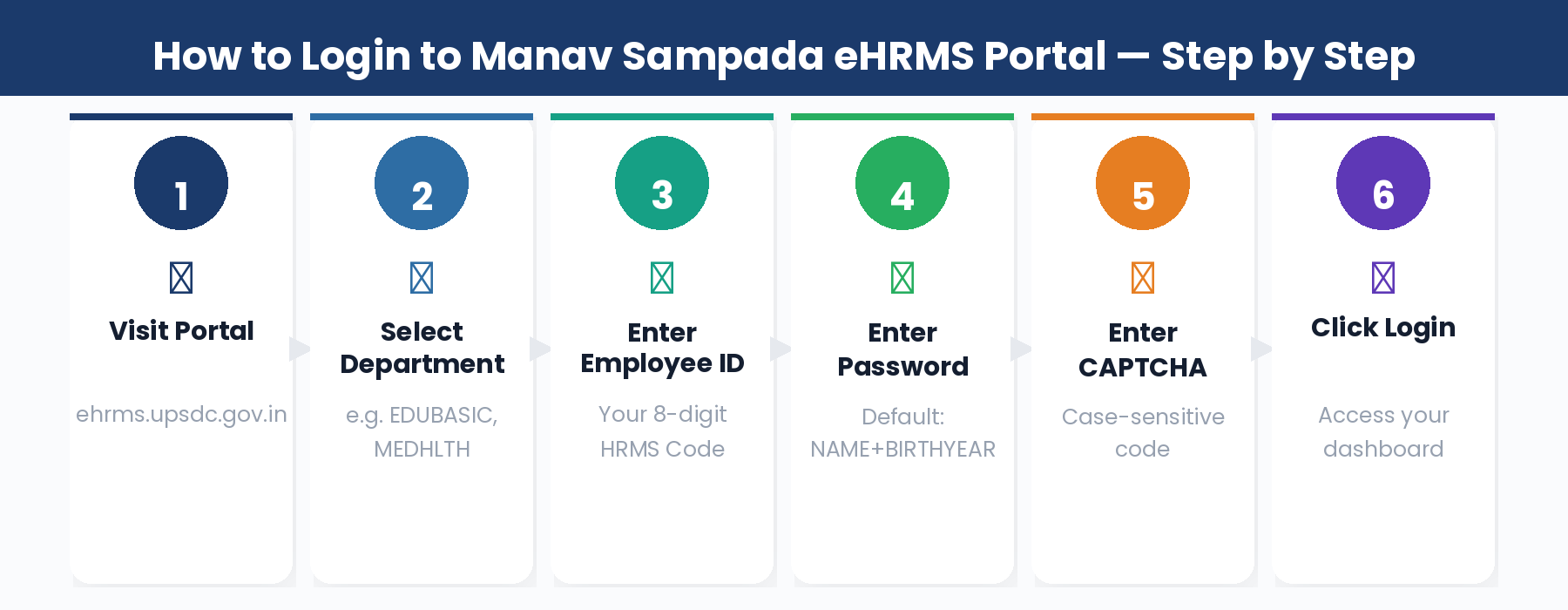
- Open your browser and go to: ehrms.upsdc.gov.in
- Click on the “eHRMS Login” button.
- From the Department dropdown, select your department (e.g. MEDHLTH for Medical & Health, EDUBASIC for Basic Education).
- In the User ID field, enter your 8-digit Employee ID.
- Enter your Password. First-time users use the default password (see section below).
- Enter the CAPTCHA code — case-sensitive.
- Click Login to access your dashboard.
✅ Tip: As of July 2025, passwords on Manav Sampada UP must be rotated every 90 days. If your password has expired, the system will prompt you to create a new one.
First Time Login — Default Password Format
🔑 Default Password Formula
First 3 letters of your first name (UPPERCASE) + Your 4-digit birth year
Examples:
• Name: Ramesh, Born: 1985 → Password: RAM1985
• Name: Priya, Born: 1990 → Password: PRI1990
• Name: Amit, Born: 1978 → Password: AMI1978
Change this immediately after first login!
How to Find Your Employee ID
- Contact your departmental Nodal Officer — the most reliable method
- Check your appointment letter — Employee ID is printed there
- Check your government-issued ID card
- Check a recent salary slip — Employee ID is printed on it
- 2026 Aadhaar-based retrieval: Click “Forgot Employee ID?” on the login page, enter Aadhaar number, authenticate via OTP. Your ID is displayed instantly.
Forgot Password — How to Reset
- Go to ehrms.upsdc.gov.in
- Click “eHRMS Login” then “Forgot Password.”
- Enter your User ID (8-digit Employee ID) and registered mobile number.
- Click Submit. An OTP is sent to your registered mobile.
- Enter the OTP and set a new password.
📞 Helpline Support
Toll-Free: 1800-1800-0666 (Free)
Direct: 0522-2780391 | 0522-4024667
Available: Monday–Saturday, 10:00 AM – 5:00 PM
If your mobile number is not registered, contact your Nodal Officer to update it first.
All Modules and Services Available on Manav Sampada
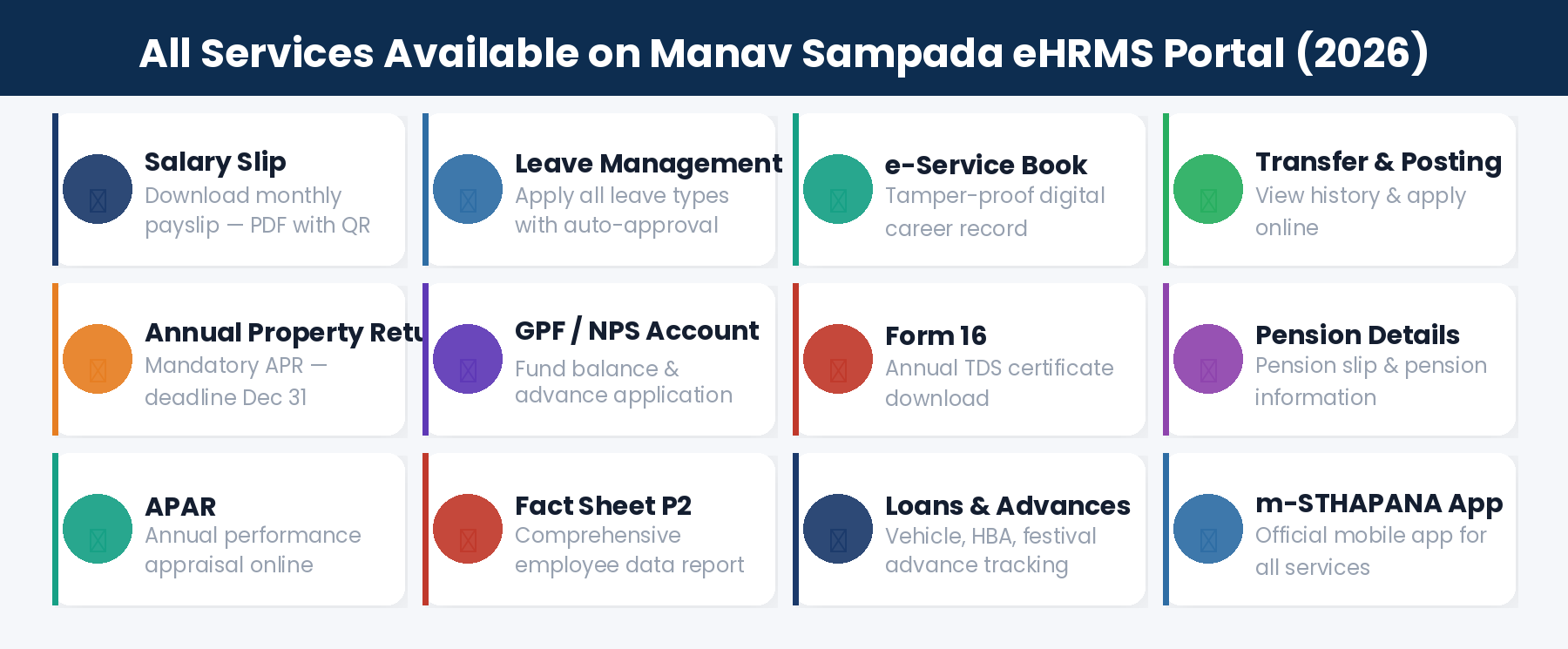
1. Salary Slip
Download monthly salary slip as a password-protected PDF. The 2026 version adds an NIC digital watermark and QR code for authenticity. A copy is automatically sent to your registered email. Use for loan applications, visa processing, and income tax filing.
2. Leave Management
Apply for all leave types — Earned Leave, Casual Leave, Medical Leave, Maternity Leave, Paternity Leave, Child Care Leave (CCL), and more. You receive a Unique Application ID (format: MS/UP/26/XXXXXX). For genuine emergencies, a Medical Emergency option gives provisional auto-approval for 96 hours.
3. e-Service Book
Your complete tamper-proof digital career record — appointment, promotions, transfers, increments, qualifications, family details, pay revision history. The 2026 version includes a Verification Log showing when and by whom your records were accessed.
4. Transfer and Posting Module
View your complete transfer and posting history. In states with online transfer functionality, check eligibility based on seniority points, view vacancies, and submit location preferences. Transfer orders are published digitally.
5. Annual Property Return (APR)
Every government employee must file APR declaring all assets. Done online on Manav Sampada. Deadline: December 31st every year. Failure to comply can attract departmental action.
6. GPF / NPS Details
Pre-2004 employees: view GPF account balance, apply for advances. Post-2004 employees: view NPS account and contributions. Both GPF advances and withdrawals can be applied for online.
7. Form 16
Download your annual income tax certificate (Form 16) from the Tax Documents section. Required for filing Income Tax Return (ITR) every year.
8. APAR
Self-appraisal, reporting officer assessment, and reviewing officer countersigning — all done online. Grading is communicated digitally with full transparency.
9. Loans and Advances
Check status of applied loans, view sanctioned amounts, track disbursement, and monitor recovery schedules for vehicle loans, house building advances, and festival advances.
10. Fact Sheet (P2 Report)
A comprehensive employee data report summarising personal details, service history, postings, and current status. Required for various administrative purposes.
How to Download Salary Slip
- Login to ehrms.upsdc.gov.in
- Navigate to Employee Services → Payroll Management → Salary Slips.
- Select the Financial Year (e.g., 2025-2026).
- Select the Month.
- Complete OTP verification if prompted.
- Click Download to save the salary slip as a PDF.
✅ Tip: The salary slip PDF is password-protected. The password is typically your date of birth in DDMMYYYY format. Check with your department if a different password has been set.
How to Apply for Leave
- Login to the portal.
- Go to Employee Services → Self-Service → Apply for Leave.
- Select the Leave Type from the dropdown.
- Select From Date and To Date.
- Enter the reason (minimum 20 characters as per 2026 rules).
- Upload supporting documents if required (PDF/JPEG/PNG, max 2 MB each).
- Review the details carefully.
- Click Submit. Note your Unique Application ID for tracking.
- Track status in Leave History section.
How to View Your e-Service Book
- Login to the portal.
- Go to My Profile or Service Records.
- Click on e-Service Book or Digital Service Book.
- Your complete career record is displayed.
- Click Download to save as PDF.
⚠️ Important: If you find any incorrect entries — wrong promotion date, missing posting, incorrect increment — immediately contact your Nodal Officer. Wrong entries can affect your pension calculation and career progression.
Annual Property Return (APR) — How to File
- Login to ehrms.upsdc.gov.in
- Go to Employee Services → Annual Property Return.
- Select the current year.
- Fill in all immovable property details — land, buildings, plots.
- Fill in movable property details — vehicles, jewellery, investments, bank accounts.
- Declare any outstanding loans or liabilities.
- Review carefully and click Submit.
- Download the acknowledgement for your records.
⚠️ Important: APR deadline is December 31st every year. Do not wait for reminders — file proactively. Late or missing APR can result in departmental action.
m-STHAPANA — Official Manav Sampada Mobile App
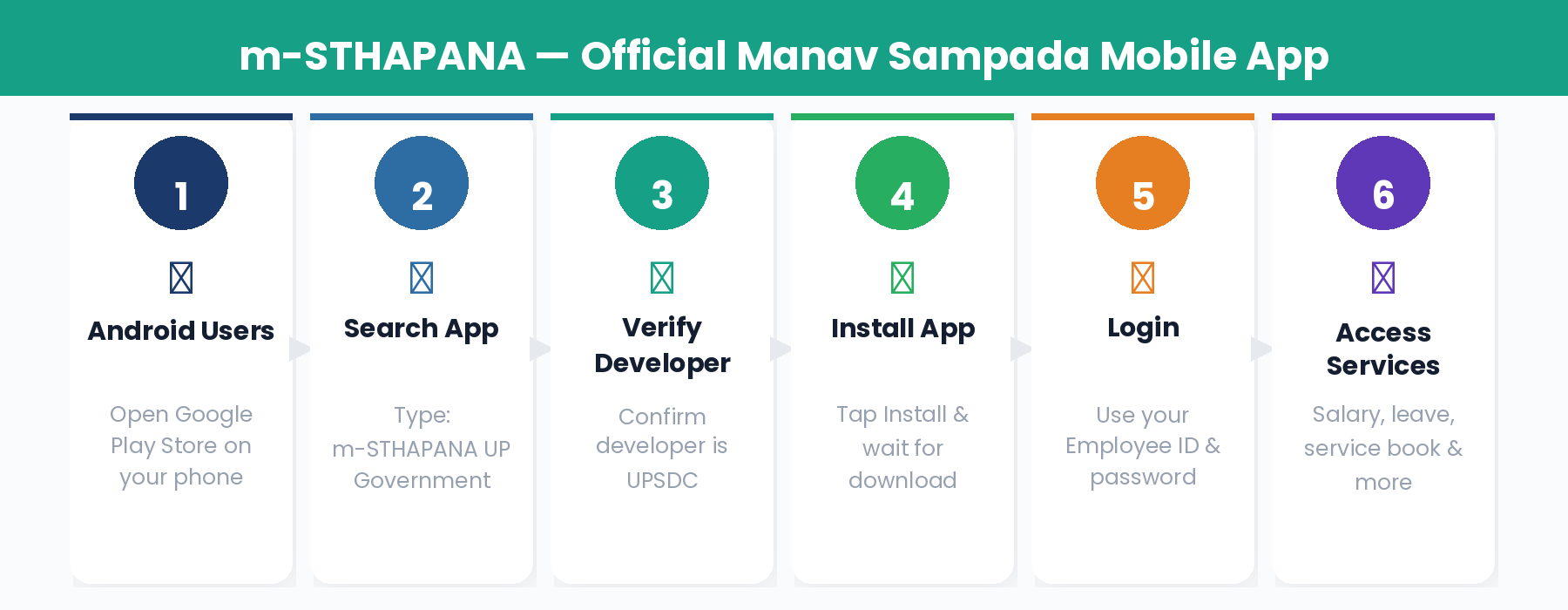
📱 App Details
App Name: m-STHAPANA UP Government
Developer: UPSDC (Uttar Pradesh State Data Centre)
Available on: Android (Google Play Store) and iPhone (Apple App Store)
Login: Same Employee ID and password as the web portal
How to Download on Android
- Open Google Play Store.
- Search: m-STHAPANA UP Government.
- Verify developer is UPSDC.
- Tap Install.
- Login with your Employee ID and password.
How to Download on iPhone
- Open Apple App Store.
- Search: m-STHAPANA UP Government.
- Confirm publisher is UPSDC.
- Tap Get and confirm with Face ID or Touch ID.
- Login with your eHRMS credentials.
Helpdesk and Support
Common Errors and Solutions
Frequently Asked Questions
Q: What is the official URL of Manav Sampada UP?
The official URL is ehrms.upsdc.gov.in. Always type this directly in your browser.
Q: Can I register myself on Manav Sampada?
No. Self-registration is not available. Only your department’s Nodal Officer can register you.
Q: What is the default password for first-time login?
First 3 letters of your first name (UPPERCASE) + 4-digit birth year. Example: Ramesh born 1985 → RAM1985. Change it immediately after first login.
Q: Which states use the Manav Sampada (NIC eHRMS) platform?
Over 22 states including Uttar Pradesh, Himachal Pradesh, Bihar, Assam, Uttarakhand, Arunachal Pradesh, Haryana, and more. Each state has its own portal URL.
Q: How do I download my salary slip?
Login → Employee Services → Payroll Management → Salary Slips → select year and month → Download. The file is a password-protected PDF.
Q: What is the m-STHAPANA app?
m-STHAPANA UP Government is the official Manav Sampada mobile app available on Android and iPhone, developed by UPSDC. Use the same login credentials as the web portal.
Q: What is the APR filing deadline?
December 31st every year. Failure to file can lead to departmental action. File proactively.
Q: My e-Service Book has incorrect entries. What should I do?
Contact your department’s Nodal Officer immediately. You cannot edit the service book yourself — corrections can only be made by authorised personnel.
Q: Can teachers use the Manav Sampada portal?
Yes. Basic Education teachers in UP use Manav Sampada under the EDUBASIC department code — salary slips, leave, service book, and transfer requests are all accessible.
Q: How many days does leave approval take?
Regular leave: 2–7 working days. Emergency leave gets provisional auto-approval for 3 days, with full documents required within 5 working days.