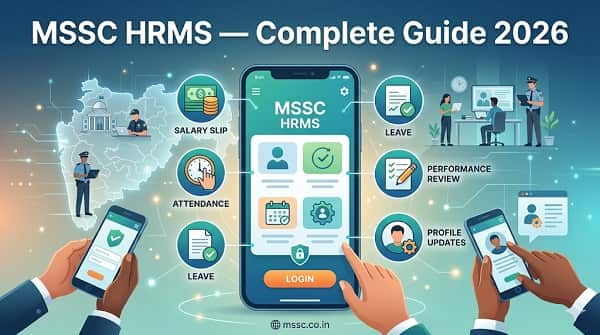
If you are an employee of the Maharashtra State Security Corporation, one digital portal now manages almost every HR service you need — from your monthly salary slip and leave applications to attendance records, performance reviews, and personal profile updates. That portal is MSSC HRMS, and this is your complete guide to using it in 2026.
What is MSSC HRMS?
MSSC HRMS stands for Maharashtra State Security Corporation — Human Resource Management System. It is the official digital HR platform launched by the Government of Maharashtra specifically for the employees of the Maharashtra State Security Corporation (MSSC).
Before this portal was launched, MSSC personnel had to rely on manual registers, paper-based forms, physical office visits, and departmental clerks for every HR task — from collecting salary slips to applying for leave. The MSSC HRMS portal changed all of that by bringing every major HR function into a single, secure, centralized online system accessible at mssc.co.in.
The system is designed to reduce manual workload, eliminate paperwork, improve data accuracy, and give every MSSC employee direct access to their own employment records from any device with an internet connection — 24 hours a day, 7 days a week.
About Maharashtra State Security Corporation (MSSC)
To understand why MSSC HRMS exists and who it serves, it helps to know the organization behind it.
The Maharashtra State Security Corporation (MSSC) is a statutory body established under the Maharashtra State Security Corporation Act, 2010. It was created to supplement and support the Maharashtra Police force by providing trained security personnel for a wide range of establishments and infrastructure.
MSSC is headed by an IPS officer of Director General of Police rank, who serves as Vice Chairman and Managing Director of the Corporation. Its head office is located at:
Maharashtra State Security Corporation Centre-1, 32nd Floor, World Trade Center Complex, Prakash Pethe Marg, Cuffe Parade, Mumbai – 400005, Maharashtra, India
What MSSC Does:
- Provides trained security personnel to State and Central Government offices and their employees
- Secures financial institutions — banks, insurance offices, treasury offices
- Guards educational institutions — schools, colleges, universities
- Protects religious institutions and places of worship
- Provides security to public sector undertakings across Maharashtra
- Secures private commercial institutions, manufacturing units, and corporate bodies
- Deploys security forces to sensitive locations and critical public infrastructure
- Assists police during crowd control, emergency situations, and special events
- Collaborates with police, home guards, fire brigades, and other security agencies for coordinated public safety
Training and Development: MSSC conducts regular training programs for its security personnel covering crowd control techniques, emergency management, first aid, communication protocols, fire safety, legal provisions related to security operations, and physical fitness standards.
Because MSSC manages a large, geographically dispersed workforce of security personnel deployed across hundreds of establishments throughout Maharashtra, an efficient digital HR system is not just convenient — it is operationally essential. That is why the Government of Maharashtra developed and launched the MSSC HRMS portal.
MSSC HRMS — Quick Reference
| Feature | Details |
| Official Portal URL | mssc.co.in |
| Organisation | Maharashtra State Security Corporation (MSSC) |
| Launched by | Government of Maharashtra |
| Who Can Access | MSSC employees only — not open to the public |
| Login Method | Employee ID / Username + Password |
| Security | Multi-Factor Authentication (MFA) + Encryption |
| Password Recovery | Forgot Password → Registered Email → Reset Link |
| Access | 24/7 from any internet-enabled device |
| New Employee Registration | Done by HR administrator — not self-registration |
| Primary Functions | Payroll, Attendance, Leave, Performance, ESS, Training, Recruitment |
Who Can Use MSSC HRMS?
The MSSC HRMS portal is exclusively for employees of the Maharashtra State Security Corporation. It is not a public portal — general citizens cannot register or access it.
Access levels within the portal are role-based:
- Regular MSSC Employees — Security personnel deployed across establishments, clerical staff, and operational personnel get standard ESS (Employee Self Service) access
- Supervisors and Managers — Supervisory personnel get additional access to approve leave requests, review attendance, and conduct performance appraisals for their team members
- HR Administrators — Full backend access for adding new employees, managing records, running reports, and system configuration
- New Employees — Accounts are created by the HR team during onboarding — new employees cannot self-register
How to Login to MSSC HRMS — Step by Step
On Desktop / Laptop:
Step 1 — Open the Official Portal Open Google Chrome or any modern browser and go to mssc.co.in. The homepage provides direct access to the HRMS login section. Always type the URL directly — do not click on links from unknown sources or unofficial websites.
Step 2 — Navigate to the HRMS Login Section On the homepage, look for the HRMS or Employee Login section. Click on it to reach the login page.
Step 3 — Enter Your Username and Password In the login fields, enter your Employee ID / Username and your Password. Passwords are case-sensitive. If this is your first login, use the credentials provided to you by your HR section or IT administrator during onboarding.
Step 4 — Complete Multi-Factor Authentication (If Required) If your organization has enabled MFA, you will receive a One Time Password (OTP) on your registered mobile number or email address. Enter the OTP in the designated field to proceed.
Step 5 — Click Login Click the Login button. You are redirected to your personalized employee dashboard.
Step 6 — Explore Your Dashboard After login, your dashboard shows a summary of your key information — attendance status, pending leave requests, pay slip access, notifications, and quick links to all available HR modules.
Step 7 — Log Out Securely When finished, always click the Sign Out or Logout option — typically located near your profile name in the top corner. Never leave sessions open, especially on shared devices.
How to Reset Your MSSC HRMS Password
Forgotten passwords are easily recovered:
- Go to the MSSC HRMS login page at mssc.co.in
- Click on the “Forgot Password” link on the login page
- Enter your registered Email ID or Employee ID in the field provided
- Check your registered email inbox for a password reset link
- Click the reset link in the email
- Follow the on-screen instructions to set a new password
- Create a strong password — use a combination of uppercase letters, lowercase letters, numbers, and symbols
- Login with the new password
If you do not receive the reset email within a few minutes, check your spam/junk folder. If the problem persists, contact your department’s HR team or the MSSC HR helpdesk — they can manually reset your account.
How to Download Salary Slip from MSSC HRMS
Your monthly salary slip is one of the most important documents you need — for personal records, bank loans, tax filing, and verification purposes. Here is how to download it:
- Go to mssc.co.in and login with your Employee ID and password
- After login, navigate to the “Payroll” or “Salary” section on your dashboard
- Click on Salary Slip or Pay Slip
- Select the Month and Year for which you want the salary slip
- Click View to preview the slip on screen
- Click Download or Print to save the salary slip as a PDF to your device
Your salary slip is available for download at any time — including for past months going back several periods. Download and save your slips every month. Banks and financial institutions typically require the last 6 to 12 months of salary slips for home loan, vehicle loan, and other financial applications.
What Your MSSC HRMS Salary Slip Contains
| Section | Details |
| Employee Information | Name, Employee ID, Designation, Department/Unit, Posting Location |
| Pay Period | Month and year of the salary |
| Basic Pay | Core salary component as per pay scale |
| Dearness Allowance (DA) | Inflation-linked component revised periodically |
| House Rent Allowance (HRA) | Based on posting city/town classification |
| Other Allowances | Uniform allowance, special duty allowance, transport allowance as applicable |
| Overtime Pay | Calculated automatically for overtime hours worked |
| Gross Pay | Total of all earning components |
| Provident Fund (PF) | Monthly PF contribution deducted from gross |
| Other Deductions | Loan recoveries, insurance premiums, advances, etc. |
| Net Pay | Amount credited to your bank account after all deductions |
| Bank Account | Account number where salary is disbursed |
All Services Available on MSSC HRMS
1. Employee Self Service (ESS)
The Employee Self Service module is the heart of the MSSC HRMS portal for individual personnel. Through ESS, employees can independently manage their own HR data without depending on the HR department for routine tasks:
- View and update personal contact details — mobile number, residential address, emergency contact
- Update family member information — for insurance, provident fund nomination, and benefits
- View employment details — posting location, designation, department
- Access and download employment-related documents
- View complete service history and posting records
- Submit correction requests for inaccurate records
2. Payroll Management
The payroll module automates salary computation and gives employees complete transparency into their earnings:
- Automated salary calculation incorporating basic pay, all allowances, overtime, and deductions
- Digital payslip generation every month
- Employees verify salary components and ensure accuracy
- Administrators process payroll with significantly reduced scope for error
- Integration with bank systems for direct salary disbursement
- Historical payslip access — download any past month’s salary slip
- Arrear payment processing when revisions or increments are implemented
3. Attendance and Time Tracking
For a security force organization where personnel are deployed across hundreds of locations, attendance tracking is operationally critical:
- Track daily entry and exit times for all personnel
- View complete monthly attendance record — present, absent, late, early departure
- Biometric integration at deployment locations feeds attendance data directly to the portal
- Supervisors monitor real-time attendance of their assigned teams
- Attendance regularisation — employees submit correction requests for missed entries due to technical failure or off-site duty
- System automatically flags attendance irregularities for supervisor review
- View organizational holiday calendar — state holidays, national holidays
4. Leave Management
The leave module covers the complete lifecycle of every leave request — from application to approval to balance update:
How to Apply for Leave on MSSC HRMS:
- Login to mssc.co.in
- Go to the “Leave Management” section
- Click “Apply for Leave”
- Select the Leave Type from the dropdown
- Enter the Start Date and End Date of your leave
- Provide the Reason for leave
- Click Submit — the request goes to your supervisor for approval
- You receive a notification when your supervisor approves or rejects it
- Your leave balance updates automatically after approval
Always check your leave balance before applying — submitting a request when the balance is zero will result in automatic rejection.
Leave Types Available:
| Leave Type | Description |
| Casual Leave (CL) | Short-duration personal leave — typically 8-12 days per year |
| Medical / Sick Leave | Leave due to illness — medical certificate may be required |
| Earned Leave (EL) | Accrued leave based on service — can be accumulated and encashed |
| Maternity Leave | For female personnel during pregnancy and post-childbirth period |
| Paternity Leave | For male personnel at the time of childbirth |
| Compensatory Off | Leave earned for working on designated holidays or rest days |
| Emergency Leave | Granted in case of unforeseen personal emergencies |
| Leave Without Pay | When no paid leave balance is available — requires approval |
5. Performance Management
The MSSC HRMS includes a structured performance management module that brings objectivity and transparency to performance evaluations:
- Goal Setting — Supervisors and personnel collaboratively define performance targets at the start of each assessment period
- Progress Tracking — Both employees and managers can monitor progress against goals in real time through the portal dashboard
- Regular Performance Reviews — Structured periodic assessments replace informal or inconsistent evaluation methods
- Feedback Mechanism — Supervisors provide structured feedback through the portal — employees can view and respond to assessments
- Year-End Appraisal — Final performance rating recorded digitally, forming the basis for increments, promotions, and recognition
- Performance Records — Complete appraisal history accessible for each employee for reference and dispute resolution
6. Training and Development Management
MSSC conducts regular training programs for its security personnel — the HRMS portal manages training records and schedules for the entire workforce:
- View upcoming training programs — refresher courses, skill development programs, specialized security training
- Enrollment in training sessions through the portal
- Mandatory training notifications automatically sent to eligible personnel
- Track training completion status
- Training history maintained on employee profile — courses attended, skills developed
- Skill development programs and workshops managed centrally
7. Recruitment Management
The recruitment module supports HR administrators in managing the hiring process for new MSSC security personnel:
- Post vacancy notifications for new positions
- Track and manage applications from candidates
- Schedule selection tests, physical fitness assessments, and medical examinations
- Document verification and background check tracking
- Onboarding management for newly recruited personnel — creating their HRMS account, providing credentials, uploading their initial service records
- Managing probation period records for newly recruited staff
8. Benefits Administration
MSSC personnel are entitled to various benefits as state government security employees. The HRMS portal helps manage and track these:
- View insurance coverage details — group insurance, accident insurance
- Track provident fund contributions and balance
- Access retirement benefit information
- View medical benefit entitlements and coverage
- Manage nominee details for PF, gratuity, and insurance claims
9. Reports and Analytics (For HR Administrators)
HR administrators and supervisors have access to reporting tools that provide visibility into workforce data:
- Attendance reports — absenteeism tracking, deployment coverage, punctuality records
- Payroll reports — total payroll cost, category-wise salary distribution
- Leave utilization reports — department-wise leave patterns
- Performance reports — rating distributions across units
- Headcount reports — current deployment strength across locations
- Customizable reports for compliance and audit purposes
Key Features of the MSSC HRMS Portal
User-Friendly Interface The portal is designed to be navigable even for users with limited digital experience. Menu options are clearly labeled, dashboard sections are logically arranged, and frequently used features are prominently accessible from the home screen.
Centralized Dashboard After login, the dashboard brings together all essential information in one view — attendance status, leave balance summary, latest payslip, pending notifications, and quick links to all major modules. No need to navigate multiple systems or portals.
Real-Time Notifications The portal sends instant alerts for important events — leave application approved or rejected, salary slip available for download, policy updates, training schedule notifications, and other HR announcements. Employees stay informed without needing to check the portal constantly.
Secure Data Management MSSC HRMS is built with multiple layers of security to protect the sensitive personal and professional data of security personnel:
- Data Encryption — All data is encrypted during transmission (SSL/TLS) and in storage
- Multi-Factor Authentication (MFA) — An additional OTP verification layer at login prevents unauthorized access even if a password is compromised
- Role-Based Access Control — Each user only sees data relevant to their role — an employee cannot access another employee’s records
- Audit Trail — All actions performed on the portal are logged, creating a traceable record for compliance and accountability
Integration Capabilities The portal integrates with other HR tools, financial management systems, and performance tracking platforms through APIs. This eliminates data silos and allows administrators to manage HR workflows from a unified system without managing multiple disconnected tools.
24/7 Accessibility Unlike an HR department that operates during fixed office hours, the MSSC HRMS portal is accessible at any time of day or night from any device with an internet connection — making it particularly valuable for security personnel deployed in shifts and working outside standard office hours.
Scalability The system is designed to accommodate the growth of the MSSC workforce without requiring system replacement. As more personnel are added, new posting locations onboarded, or new HR modules activated, the platform scales accordingly.
How to Add a New Employee to MSSC HRMS (For HR Administrators)
Only authorized HR administrators can add new employees to the system — self-registration by employees is not available:
- Login to mssc.co.in with administrator credentials
- The Admin Panel opens on screen
- Navigate to the Employee Management section
- Click “Add New Employee”
- Enter the new employee’s personal information — name, date of birth, contact details, residential address
- Enter professional information — designation, department, posting location, joining date
- Upload required documents — appointment order, ID proof, educational certificates
- Click “Save”
- The system generates unique login credentials for the new employee
- Share the credentials with the new employee through the appropriate official channel
- Inform the employee to login immediately and change their default password
How to Update Employee Information on MSSC HRMS
For Employees (Self-Update via ESS):
- Login to mssc.co.in
- Go to the “Employee Information” or “My Profile” section
- Click Edit on the field you wish to update
- Make the required changes
- Click Save
Note: Sensitive fields like bank account details and designation-related information typically require HR administrator approval before changes are reflected in the system.
For HR Administrators (Bulk or Sensitive Updates):
- Login to mssc.co.in with administrator credentials
- Use the Search function to locate the employee’s profile
- Open the profile and make the required corrections
- Save the changes
- System logs the change with administrator credentials and timestamp for audit trail
Benefits of MSSC HRMS
For Personnel (Employees):
- Direct access to salary slips any time — no office visit required
- Apply for leave online — no paper forms, faster processing
- Complete transparency into attendance records and leave balance
- Update personal details independently — address changes, contact updates
- 24/7 availability — accessible from any mobile or computer
- Notifications keep personnel informed without needing to check the portal repeatedly
- Eliminates dependence on HR personnel for routine information
For Supervisors and Managers:
- One-click approval for leave and attendance requests — no paperwork
- Real-time visibility into team attendance and deployment strength
- Structured performance management replaces informal evaluations
- Training tracking ensures compliance with mandatory refresher requirements
For the HR Department:
- Significant reduction in routine queries — fewer calls and in-person visits
- Automated payroll reduces manual calculation errors
- Digital records are easier to manage, search, and audit than physical files
- Compliance reporting is faster and more accurate
- HR team freed to focus on strategic activities rather than routine administration
For the Organization:
- Reduced operational costs from paperless processes
- Better data quality across all HR records
- Compliance with labour laws and government regulations is easier to maintain
- Audit readiness — every action in the system is logged and traceable
- Better workforce planning through accurate attendance and deployment data
Common Problems and Solutions
| Problem | Cause | Solution |
| Login page not loading | Browser issue or poor internet | Clear cache; use Chrome; check internet connection; try incognito mode |
| Incorrect username or password error | Wrong credentials | Double-check Employee ID format; ensure Caps Lock is off; use Forgot Password if needed |
| Password reset email not arriving | Email in spam or wrong email registered | Check spam folder; contact HR to verify registered email address |
| Salary slip not showing for a month | Payroll not yet processed | Wait 3-5 working days after month end; contact HR payroll section if still not available |
| Leave request stuck on “Pending” | Supervisor has not acted on the request | Contact your direct supervisor; they may not have seen the notification |
| Attendance record incorrect | Biometric failure or off-site duty | Submit an Attendance Regularisation Request through the portal with the correct details |
| Cannot update bank account details | Security restriction — HR approval required | Submit a formal request to HR with a cancelled cheque and supporting documents |
| Portal showing wrong personal details | Incorrect data entry during onboarding | Contact HR administrator to raise a correction request — cannot self-edit sensitive fields |
| Error code appearing on screen | System or browser compatibility issue | Note the error code; try a different browser; contact the HR helpdesk with the error details |
| Session expired — logged out suddenly | Session timeout after period of inactivity | This is a security feature — simply login again |
Security Tips for MSSC HRMS Users
Your MSSC HRMS account contains sensitive personal, financial, and employment data. Protect it:
- Never share your password with anyone — not with colleagues, not with supervisors, not with anyone claiming to be from IT
- Create a strong password — combine uppercase letters, lowercase letters, numbers, and symbols. Avoid using your date of birth, name, or Employee ID as the password
- Change your password regularly — especially if you suspect it may have been seen by someone else
- Always log out after using the portal — particularly on shared computers or devices at your posting location
- Do not use the portal on public Wi-Fi — such as railway stations, airports, or cafes — without a VPN
- Report suspicious activity — if you notice any unfamiliar logins, changes you did not make, or missing salary records, immediately report it to your HR department
- Use official URL only — always type mssc.co.in directly in the browser. Fake lookalike websites may be designed to steal login credentials
Frequently Asked Questions — MSSC HRMS
Q1. What is MSSC HRMS?
A: MSSC HRMS is the official Human Resource Management System portal of the Maharashtra State Security Corporation, launched by the Government of Maharashtra. It is an online platform that centralizess all HR functions for MSSC employees — payroll, attendance, leave management, performance appraisals, training, and employee self-service — at the portal mssc.co.in.
Q2. Who can access the MSSC HRMS portal?
A: Only employees of the Maharashtra State Security Corporation can access the portal. It is not open to the public or to personnel from other organizations. Each MSSC employee is provided unique login credentials by the HR or IT team during onboarding.
Q3. What is the official website for MSSC HRMS?
A: The official website is mssc.co.in. Always access the portal by typing this URL directly in your browser. Do not click on links from unofficial sources.
Q4. How do I download my salary slip from MSSC HRMS?
A: Login to mssc.co.in → Go to Payroll / Salary section → Click Salary Slip → Select Month and Year → Click View or Download to save as PDF.
Q5. Can I register myself on MSSC HRMS?
A: No. Self-registration is not available. Your account is created by the HR administrator when you join MSSC. Your Employee ID and default login credentials are shared with you during onboarding. If you have not received your credentials, contact your department’s HR section.
Q6. How do I reset my MSSC HRMS password?
A: Go to mssc.co.in → Click “Forgot Password” on the login page → Enter your registered Email ID or Employee ID → Check your email for the reset link → Follow instructions to create a new password.
Q7. Can I apply for leave through the MSSC HRMS portal?
A: Yes. Login to mssc.co.in → Leave Management section → Apply for Leave → Select leave type and dates → Submit. Your supervisor receives a notification and approves or rejects it digitally. Your leave balance updates automatically after approval.
Q8. Can I update my personal details on MSSC HRMS myself?
A: Some personal details — such as contact number, address, and emergency contact — can be updated directly through the ESS (Employee Self Service) section. Sensitive fields like bank account details, designation, and joining date require HR administrator approval before changes take effect.
Q9. Is MSSC HRMS available on mobile phones?
A: Yes. The mssc.co.in portal is accessible through mobile browsers on Android and iOS smartphones. Security personnel deployed away from office locations can access their HR services from their mobile devices.
Q10. What should I do if my attendance record is incorrect?
A: Login to MSSC HRMS → Go to Leave and Attendance Module → Submit an Attendance Regularisation Request specifying the date and the correct details. Your supervisor reviews and approves the correction, which then updates your official attendance record.
Q11. Can retired MSSC personnel access the HRMS portal?
A: Retired MSSC personnel may have continued access to certain modules — such as service record history, pension-related information, and provident fund settlement details — depending on the access rights configured by the HR department at the time of retirement.
Q12. What does MSSC stand for?
A: MSSC stands for Maharashtra State Security Corporation — a statutory body established under the Maharashtra State Security Corporation Act, 2010, to provide professional security services across Maharashtra for government offices, financial institutions, educational establishments, public sector undertakings, and private commercial establishments.