Forgot your Railway HRMS password? Do not worry — it happens to everyone. The good news is that resetting your password on the Railway HRMS portal takes less than 2 minutes, as long as your mobile number is registered in the system.
This guide covers two things: how to reset a forgotten password using the Forgot Password link, and how to change your password when you already know the current one.
⚠️ Note: The OTP for password reset is sent to the mobile number registered in the HRMS system. If your mobile number is wrong or not registered, you will not receive the OTP. Read Section 3 of this article for what to do in that case.
Method 1 — Reset Forgotten Password (Forgot Password Option)
Use this method when you have forgotten your password completely and cannot login.
- Open your browser and go to the official portal: hrms.indianrail.gov.in/HRMS
- On the login page, look for the “Forgot Password” link — it is below the login form. Click it.
- A new page opens. Enter your HRMS Login ID in the field and click Submit.
- The system will send a 5-digit OTP to your registered mobile number. You will see a message like: “A 5-digit OTP sent to 9XXXXXXXX0 successfully for XXXXXXX.”
- Enter the OTP in the box provided and click “Password Reset.”
- Once OTP is verified, the system allows you to set a new password. Enter your new password, confirm it, and click Change.
- You will see the message “Password Changed Successfully.” Login with your HRMS ID and new password.
✅ Tip: After resetting, log in immediately and confirm the new password works. Save it in a safe place.
Method 2 — Change Password (When You Know Current Password)
Use this method when you want to update your password proactively and you still remember the current one.
- Login to the HRMS portal at hrms.indianrail.gov.in/HRMS.
- After logging in, look at the top right corner of the page. You will see your name displayed.
- Click on your name. A dropdown menu appears.
- Click on “Change Password” from the dropdown.
- Enter your Current Password in the first box.
- Enter your New Password in the second box and confirm it in the third box.
- Click the “Change” button.
- The message “Password Changed Successfully” will appear.
⚠️ Note: The Change Password option is only available on the HRMS website version. It is NOT available on the mobile app. To change your password via mobile, use the Forgot Password method above.
Railway HRMS Password Policy — Rules You Must Follow
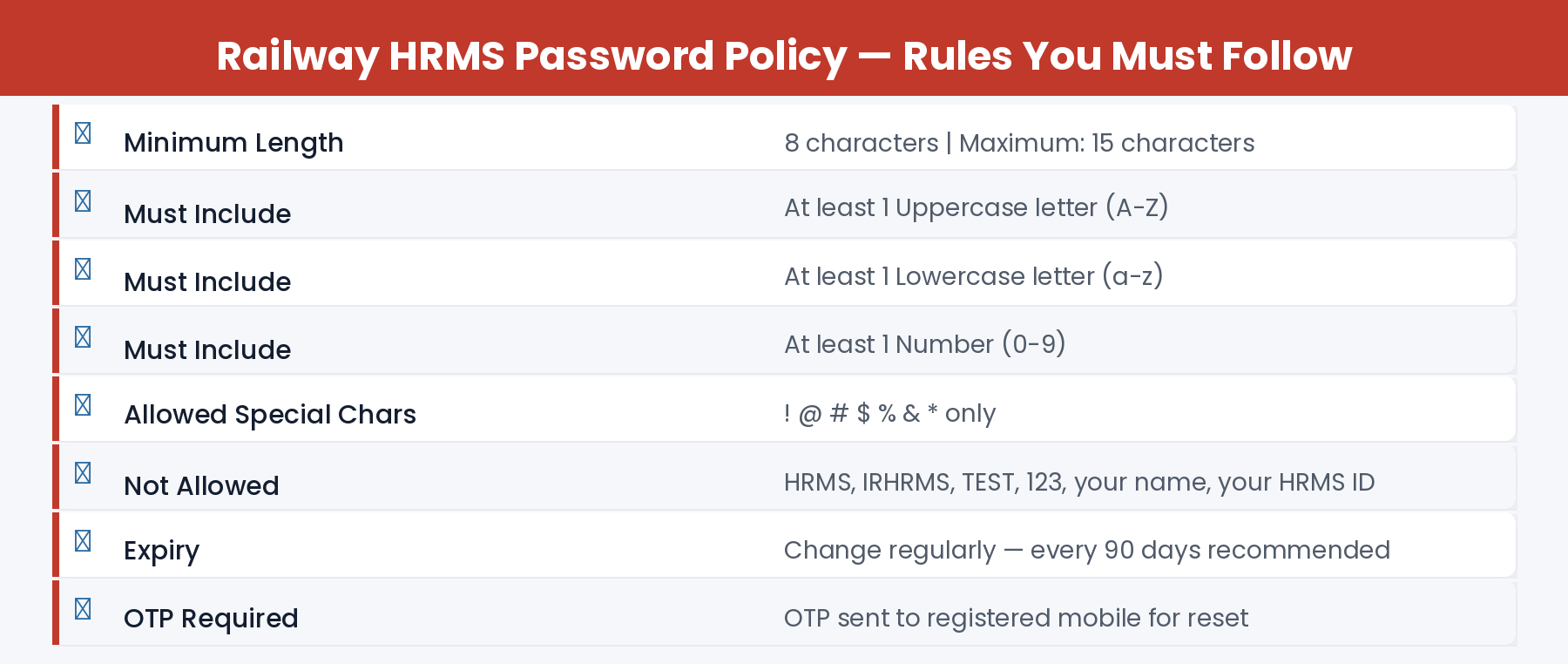
When setting a new password, you must follow the HRMS password policy strictly. The system will reject any password that does not meet these rules:
Good password examples: Rail@2026#, Train$789, Rly#Pass26
OTP Not Received — What to Do
🚫 OTP Not Arriving on Your Phone?
This means your mobile number is either not registered in HRMS or the number in the system is outdated. Here is what to do:
- Contact your Establishment / HR Clerk and ask them to update your correct mobile number in the IPAS database.
- Contact the zone-wise HRMS helpdesk for your railway zone (see helpdesk numbers in our dedicated article).
- Once mobile is updated in IPAS, it syncs with HRMS and you can use Forgot Password again.
- In extreme cases, your Personnel Branch can manually reset your HRMS password — contact them directly.
First Time Login — Default Password
If you are logging in for the very first time, the default password is: Test@123
After logging in with this default password, HRMS will automatically prompt you to set a new password. You cannot skip this step. Choose a strong password as per the policy above and keep it safe.
Q: How many digits is the HRMS reset OTP?
The OTP sent during password reset is a 5-digit number sent to your registered mobile.
Q: I entered the OTP but it says “Invalid OTP”. What to do?
OTPs expire after a few minutes. If your OTP expired, go back to the Forgot Password page and request a new one. Enter the new OTP immediately.
Q: Can I reset HRMS password from the mobile app?
The Forgot Password option works on the mobile app too. Open the app, tap Forgot Password, enter your HRMS ID, and enter the OTP received.
Q: My mobile number in HRMS is wrong. How do I fix it?
Contact your Establishment Clerk or Personnel Branch and ask them to update your mobile number in the IPAS system. Once updated, it will sync with HRMS.
Q: How often should I change my Railway HRMS password?
It is recommended to change your password every 90 days as a security best practice. Use a strong, unique password each time.