Focus Keyword: FCI HRMS Secondary Keywords: hrmsfci.in login, FCI HRMS salary slip, FCI HRMS ERS portal, FCI employee portal 2026, FCI HRMS leave apply, FCI HRMS MPIN
Food Corporation of India manages one of India’s most complex government supply chains — procuring, storing, and distributing food grains across every corner of the country. Behind that massive operation is an equally large workforce. Managing those employees efficiently, transparently, and at scale is what FCI HRMS was built to do. This guide covers every feature, every step, and every answer you need in 2026.
What Is FCI HRMS?
FCI HRMS is the official digital HR platform of the Food Corporation of India, replacing manual paperwork with a centralized online system for all employee needs.
FCI HRMS stands for Food Corporation of India — Human Resource Management System. It is the official employee portal that manages every aspect of HR for FCI’s workforce — from salary slips and leave applications to service records, performance appraisals, and retirement processing.
The portal is accessible at hrmsfci.in and is powered by Konnect, built to serve a large, geographically dispersed government workforce spread across all Indian states in zonal offices, regional offices, district offices, and grain storage depots.
Before FCI HRMS, employees had to physically visit HR offices, wait for paper salary slips, submit handwritten leave forms, and track service records manually through physical files. All of that changed when FCI digitized its HR operations through this centralized platform.
About Food Corporation of India — The Organisation Behind FCI HRMS
Understanding FCI’s scale and mission helps explain why a robust, national-level HRMS is not just useful but operationally critical for this organization.
The Food Corporation of India (FCI) was established in 1965 under the Food Corporations Act, 1964. It operates under the Ministry of Consumer Affairs, Food and Public Distribution, Government of India. FCI is one of the largest public sector undertakings in the country by workforce size, operational reach, and strategic importance.
| Feature | Details |
| Established | 1965 under Food Corporations Act, 1964 |
| Ministry | Ministry of Consumer Affairs, Food and Public Distribution |
| Headquarters | New Delhi |
| Operational Reach | All states and Union Territories across India |
| Key Responsibilities | Food grain procurement, storage, distribution, buffer stock management |
| Coverage | 17 Zones, Regional Offices, District Offices, Hundreds of Depots |
| Mission | Ensure national food security through price-support operations and PDS distribution |
FCI’s Core Functions:
- Managing price-support procurement operations for farmers across India
- Distributing food grains to states through the Public Distribution System (PDS)
- Maintaining buffer stocks of wheat, rice, and coarse grains for national food security
- Stabilizing market prices of essential food grains
- Overseeing storage infrastructure at thousands of locations nationwide
The sheer geographic spread of FCI’s operations — with personnel deployed at depots in remote districts, zonal officers in metros, and managers in state capitals — makes a unified, cloud-accessible HRMS essential for day-to-day HR management.
FCI HRMS — Complete Quick Reference Table
This table gives every FCI employee a single-glance summary of all critical portal information, so you always know where to go and what you need.
| Feature | Details |
| Main Portal URL | hrmsfci.in / www.hrmsfci.in/login |
| ERS Sub-Portal | ers.hrmsfci.in |
| FCI Financials Portal | fcilekha.in |
| Technology Partner | Konnect |
| Authentication | OAuth 2.0 — time-limited tokens (~1 hour per session) |
| Web Login | Employee ID + Password + Captcha |
| App Login | MPIN (Mobile PIN) after initial setup |
| Mobile App | Android (Google Play Store) + iOS (official HRMS portal) |
| Password Recovery | Forgot Password → email/OTP reset |
| Self-Registration | Not available — HR/IT sets up accounts during onboarding |
| HRMS Support Phone 1 | 011-43527574 |
| HRMS Support Phone 2 | 011-23411825 |
| HRMS Support Email | hrmssupport.fci@gov.in |
Who Can Access FCI HRMS?
Not all FCI-connected individuals have portal access — eligibility is role-based and restricted to active employees, authorized managers, and registered retirees.
Access to the FCI HRMS portal is strictly limited to authorized personnel within the Food Corporation of India. The system uses role-based access control, meaning different users see different dashboards depending on their designation.
Authorized Users:
- Regular FCI Employees — Clerical staff, depot employees, technical personnel, and officers across all zones and regions. These users access the ESS (Employee Self Service) dashboard for payroll, leave, attendance, and service records
- Managers and Competent Authorities — Supervisory officers who additionally use the MSS (Manager Self Service) dashboard to approve subordinate requests, review team attendance, and initiate performance evaluations
- Retired FCI Employees (Pensioners) — Retirees access a limited version of the portal for service book history, CPF settlement tracking, pension-related details, and post-retirement travel allowance information
- HR and IT Administrators — Full backend access for account creation, data management, payroll processing, and system configuration
Who Cannot Access: Outsourced staff, third-party contractors, and casual workers generally do not receive full HRMS access unless specifically granted limited access by the FCI IT team.
How to Login to FCI HRMS — Step-by-Step Web Portal Guide
Follow these exact steps to access your FCI HRMS account on desktop or laptop — the process takes under two minutes once your credentials are ready.
Step 1 — Open the Official Portal
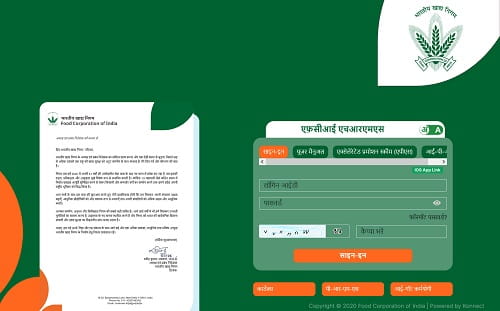
Open Google Chrome (recommended for best compatibility) and type hrmsfci.in/login directly in the address bar. Never search for the portal through third-party sites — fake lookalike websites designed to steal credentials have been reported. Always type the URL manually.
Step 2 — Enter Your Employee ID
Type your Employee ID in the Login ID field. This is your unique identifier within FCI’s HR system — not your PF number, which is a different number entirely. Your Employee ID is printed on your appointment letter, joining letter, and salary slips.
Step 3 — Enter Your Password
Type your password in the designated field. Passwords in FCI HRMS are case-sensitive. First-time users should enter the default password provided by the IT section during onboarding.
Step 4 — Complete the Captcha
Enter the alphanumeric captcha code displayed on the login page. This security measure confirms you are a human user and not an automated login attempt. If the captcha is unclear, refresh it.
Step 5 — Click Sign In
Click the Sign In button. The system authenticates your credentials using OAuth 2.0, which issues a time-limited session token (approximately one hour). If authentication is successful, you are taken to your personalized HRMS dashboard.
Step 6 — Explore the Dashboard
After login, your dashboard displays a summary of key metrics — attendance status, leave balance, payslip notifications, pending requests, and quick access links to all major modules. The layout adapts based on your role — regular employees see ESS features; managers see both ESS and MSS tools.
Step 7 — Sign Out Securely
When finished, always click your name or profile icon and select Sign Out. FCI HRMS sessions expire automatically after approximately one hour of inactivity, but logging out manually is always the safer practice — especially on shared office computers.
How to Login via MPIN on the FCI HRMS Mobile App
The mobile app offers a faster alternative to the web portal, using a short numeric MPIN instead of a full password — ideal for employees checking in on the go.
FCI provides a dedicated mobile application for Android (Google Play Store) and iOS (via the official HRMS portal). The app supports MPIN login — a 4-6 digit Mobile Personal Identification Number that replaces the full password for quick, convenient mobile access.
Setting Up MPIN for the First Time:
- Download the FCI HRMS app from Google Play Store (Android) or from the link on the HRMS official portal (iOS)
- Open the app and tap “Login with MPIN”
- Tap “Create MPIN”
- Enter your Employee ID and Date of Birth in the required fields
- Enter any additional details prompted by the system
- An OTP is sent to your registered mobile number
- Enter the OTP to verify your identity
- Set your preferred 4-6 digit MPIN and confirm it
- Your MPIN is now active for all future app logins
Logging In with MPIN After Setup:
- Open the FCI HRMS mobile app
- Tap “Login with MPIN”
- Enter your MPIN
- Tap Submit — you are taken directly to your dashboard
The MPIN method is particularly useful for depot employees and field officers who need quick access to attendance records or leave status from their phones without typing a long password every time. The Android app supports all major HRMS functions — leave application, payslip download, attendance viewing, and profile management.
How to Reset Your FCI HRMS Password
Forgetting a password is not a crisis — the portal provides a straightforward self-service reset process that restores access in just a few steps.
If you cannot remember your password, here is exactly what to do:
- Go to hrmsfci.in/login in your browser
- Click the “Forgot Password?” link below the login form
- Enter your Employee ID in the field provided
- The system verifies your Employee ID and sends a reset link or OTP to your registered email address or mobile number
- Open your email and click the reset link — or enter the OTP on the portal
- Follow the on-screen instructions to create a new password
- Choose a strong password that meets FCI HRMS security requirements — minimum 8 characters combining uppercase letters, lowercase letters, numbers, and at least one special character
- Login with the new password immediately to confirm it works
If the Reset Process Fails: Contact your Nodal Officer first — they have the fastest ability to manually trigger a password reset at the local level. If the Nodal Officer cannot resolve it, contact the HRMS central helpdesk at 011-43527574 or email hrmssupport.fci@gov.in with your Employee ID, name, and office details.
The Two FCI HRMS Portals — Main HRMS and ERS Explained
FCI HRMS operates through two connected but distinct portals — each serving a different purpose, and together giving employees complete access to their HR and service record data.
Main HRMS Portal — hrmsfci.in
The primary employee portal handles all day-to-day HR functions. Both the ESS (Employee Self Service) dashboard for individual employees and the MSS (Manager Self Service) dashboard for approving officers are accessed here. This is where you download salary slips, apply for leave, check attendance, access payroll documents, and receive HR notifications.
ERS Sub-Portal — ers.hrmsfci.in
The Employee Record Sheet (ERS) portal is a dedicated sub-portal focused entirely on career and service record management. It displays your complete professional history in a structured, detailed format — every posting, every designation change, every training course — with exact dates for each.
| Feature | Main HRMS (hrmsfci.in) | ERS Sub-Portal (ers.hrmsfci.in) |
| Salary Slip Download | ✅ Available | ❌ Not available |
| Leave Application | ✅ Available | ❌ Not available |
| Attendance Tracking | ✅ Available | ❌ Not available |
| Personal Details (basic) | ✅ Available | ✅ Detailed with official email |
| Posting History | ✅ Basic view | ✅ Zone, Region, office-level detail |
| Designation History | ✅ Available | ✅ With exact appointment dates |
| Training Records | ✅ Available | ✅ Competency assessments + certificates |
| Transfer Joining/Relieving Dates | ✅ Available | ✅ Per transfer — granular detail |
| Division / Section / Cadre Details | ❌ Limited | ✅ Full breakdown |
| Mode of Joining | ❌ Not shown | ✅ Available |
Both portals use the same login credentials. Many employees use the main HRMS for daily tasks and only access ERS when they need detailed service record verification — for promotions, DPC (Departmental Promotion Committee), pension calculations, or court matters.
How to Download Salary Slip from FCI HRMS
Downloading your monthly pay slip from FCI HRMS takes under a minute once you are logged in — and all past slips remain available for download any time.
Via the Web Portal (hrmsfci.in):
- Login to hrmsfci.in/login with your Employee ID and password
- On your dashboard, navigate to the Payroll or Salary section
- Click on “Salary Slip” — a calendar-based selector appears
- Select the Month and Year for which you want the salary slip
- Click “View” to preview the slip on screen
- Click “Download PDF” to save a copy to your device
Via the Mobile App:
- Login to the FCI HRMS app using your Employee ID + password or MPIN
- Tap the “Salary” option on your mobile dashboard
- Select the month and year
- Tap “Download Slip” — the PDF saves automatically to your device
Pro Tip: Save your salary slips every single month without exception. Banks, housing finance companies, and NBFCs typically require the last 6–12 months of salary slips for home loans, vehicle loans, and personal loan applications. Having them downloaded and backed up ensures you are never scrambling when a financial institution makes this request urgently.
What Your FCI HRMS Salary Slip Contains
Every component on your FCI salary slip has a specific meaning — this section explains each earning and deduction field so you can verify accuracy confidently.
| Section | Details Included |
| Employee Details | Name, Employee ID, Designation, Zone/Region, Office |
| Pay Structure Type | IDA (Industrial DA) or CDA (Central DA) — depends on your cadre |
| Basic Pay | Core salary as per FCI pay revision and scale |
| Dearness Allowance (DA) | IDA or CDA component — revised periodically by the government |
| House Rent Allowance (HRA) | Based on city classification of your posting location |
| Transport Allowance (TA) | Fixed allowance for commuting — as per designation level |
| Other Allowances | Special allowances, project allowances, or deputation allowances as applicable |
| CPF / EPF Deduction | Contributory Provident Fund monthly contribution — deducted from gross |
| Income Tax (TDS) | Tax deducted at source based on annual declaration |
| Other Deductions | Loan recoveries, LIC, cooperative society subscriptions, medical fund |
| Gross Pay | Total earnings before all deductions |
| Net Pay | Final amount credited to your bank account |
Additional Documents Available in the Payroll Section:
- Form 16 — Annual TDS certificate for ITR filing
- Income Tax Computation Sheet — Year-wise tax calculation breakdown
- CPF/EPF Annual Statement — Contribution history and accumulated balance
- Arrear Slips — Generated when pay revisions or DA revisions create arrear payments
All Services Available on FCI HRMS
FCI HRMS is far more than a salary slip portal — it is a complete HR ecosystem covering the entire employee lifecycle from joining to retirement.
Employee Self Service (ESS)
The ESS module gives every FCI employee direct control over their own HR data, eliminating the need to visit HR offices or raise requests for routine information.
Through ESS, employees manage their own profile and access their records independently. The ESS dashboard allows downloading salary slips and Form 16, viewing CPF/EPF statements, applying for all types of leave, checking attendance records and leave balance, submitting attendance regularisation requests for missed biometric entries, updating personal contact details and family information, accessing service history through the ERS link, and receiving all HR notifications and official circulars in one place.
Manager Self Service (MSS)
Managers and Competent Authorities have an additional MSS dashboard giving them supervisory tools to manage their team’s HR workflows efficiently.
The MSS dashboard extends beyond personal HR access to include team management capabilities. Managers can approve or reject subordinate leave applications with a single click, view real-time attendance for all their direct reports, access team payroll summaries, initiate performance appraisal workflows, review and submit performance ratings, monitor training completion status for their team, generate attendance and leave utilization reports, and track pending requests from subordinates that require their action.
Payroll and Salary Management
The payroll module automates salary computation and disbursement, eliminating manual calculation errors and giving employees real-time visibility into every component of their pay.
FCI HRMS automates the entire monthly salary cycle — computing basic pay, DA, HRA, TA, allowances, overtime, and all applicable deductions automatically. The module also handles pay revision arrear calculations when FCI or the government announces pay revisions, ensuring retroactive payments are computed and disbursed accurately. Integration with banking systems ensures salary is credited directly to the employee’s registered bank account on the designated date each month.
Attendance and Biometric Integration
Attendance is recorded automatically through biometric systems across FCI offices and depots, feeding real-time data into the HRMS portal for employees and supervisors to view.
FCI has integrated biometric attendance systems across its offices, zonal headquarters, regional offices, and major depots. When employees clock in and out using the biometric device, the data is automatically captured and reflected in their HRMS attendance record. Employees can view their complete attendance history — present days, absent days, late arrivals — directly on the portal. If a biometric device fails to capture attendance, employees submit an Attendance Regularisation Request through the portal specifying the correct details. The reporting officer reviews and approves the correction digitally.
Leave Management
The leave module covers the complete lifecycle of every leave request — from online submission to digital approval — with automatic leave balance updates after each transaction.
Applying for leave through FCI HRMS takes less than two minutes. Login → Leave Module → Apply for Leave → Select leave type → Enter dates and reason → Submit. The application is immediately forwarded digitally to the Competent Authority designated for that leave type. The approving officer receives a notification, reviews the application, and approves or rejects it through their portal. The employee receives an instant notification of the decision, and their leave balance updates automatically. Pending applications can be withdrawn before approval if plans change.
Leave Types Available for FCI Employees:
| Leave Type | Description |
| LAP — Leave on Average Pay | Primary earned leave — accrued based on service period |
| LHAP — Leave on Half Average Pay | Half-pay leave — accrued annually |
| Casual Leave (CL) | Short personal leave — typically up to 8 days |
| Medical Leave | Leave due to illness — medical certificate may be required |
| Maternity Leave | For female employees — up to 180 days |
| Paternity Leave | For male employees — 15 days |
| Child Care Leave (CCL) | For female employees with children under 18 |
| Extraordinary Leave | Leave without pay when no other leave is available |
| Commuted Leave | LHAP converted to LAP with medical certificate |
Service Records — ERS (Employee Record Sheet)
The ERS portal at ers.hrmsfci.in maintains a complete, detailed digital record of every employee’s career in FCI — from joining date to current posting.
The Employee Record Sheet available at ers.hrmsfci.in is the digital equivalent of a physical service book. It records personal details including name, date of birth, category, and official email ID. It shows the complete posting history — every Zone, Region, and office assignment with exact joining and relieving dates. All designations held throughout the career are listed with precise appointment and promotion dates. Training records include every course attended, competency assessments completed, and certificates earned. This record is used in DPC (Departmental Promotion Committee) proceedings, pension calculations, court matters, and seniority list preparation.
Performance Management System (PMS)
FCI HRMS provides structured performance appraisal tools that bring objectivity and documentation to the annual assessment process for all non-gazetted and gazetted officers.
The PMS module on FCI HRMS manages the complete appraisal cycle digitally. Employees and reporting officers set performance goals at the start of each appraisal year. Progress is tracked and documented throughout the year. The Annual Performance Appraisal Report (APAR) is completed online — the employee submits self-assessment, the reporting officer records their assessment, and the reviewing officer adds their remarks. For gazetted officers, SPARROW (the central government’s online ACR system) is integrated with FCI HRMS for appraisal management.
Training and Development
FCI HRMS tracks all training programs and development activities, ensuring employees’ skill upgrades are recorded in their service history and used for career progression decisions.
FCI regularly conducts training programs for its employees at FCI’s own training institutes and external institutions. The training module on HRMS allows employees to view upcoming training programs they are scheduled to attend, receive notifications about mandatory training, track attendance at training sessions, download training completion certificates, and view their complete training history — all of which feeds into service record updates on the ERS portal.
Immovable Property Return (IPR)
Certain categories of FCI officers are required to file their annual property declaration online — the IPR module handles this compliance requirement within the HRMS portal.
Gazetted officers and certain other categories of FCI employees must file an Immovable Property Return (IPR) annually as required under government service conduct rules. The IPR module on FCI HRMS allows eligible employees to submit their property declarations online, upload supporting documents, and maintain a digital record of all declarations filed during their service. This eliminates the previous paper-based submission process and ensures compliance records are centrally maintained.
Retirement and Pension Processing
FCI HRMS supports retiring employees through the entire settlement process digitally, reducing the dependency on physical paperwork and office visits during a critical career transition.
As employees approach retirement, FCI HRMS facilitates the settlement process. Retired employees retain portal access to view service book records, track CPF settlement status, access pension-related information, download historical salary slips needed for pension calculation, check post-retirement medical coverage details, and manage travel allowance entitlements available for a few years post-retirement. Retirees login using the same portal credentials maintained during active service.
FCI HRMS Security Architecture
FCI HRMS is built with enterprise-grade security protocols to protect the sensitive financial and personal data of thousands of government employees.
The FCI HRMS portal handles payroll data, personal identification information, bank account details, and career records for a large government workforce. Security is therefore a primary design consideration, not an afterthought.
Security Features of FCI HRMS:
- OAuth 2.0 Authentication — Industry-standard authorization framework. Each login session generates a time-limited access token (approximately one hour) that expires automatically, preventing persistent unauthorized sessions
- Data Encryption — All data transmitted between employee devices and FCI HRMS servers is encrypted using SSL/TLS protocols
- Role-Based Access Control (RBAC) — Each user only sees data relevant to their role. An employee cannot access another employee’s salary slip, service record, or personal information
- Captcha Verification — Login captcha prevents automated brute-force login attempts
- Session Timeout — Sessions expire automatically after approximately one hour of inactivity, even if the browser remains open
- MPIN Security — Mobile MPIN requires initial OTP verification tied to the employee’s registered mobile number before it can be activated
Security Best Practices for Employees:
- Never share your Employee ID, password, or MPIN with anyone — FCI IT and HR staff will never ask for your password
- Always log out completely after every session, especially on shared workstations
- Use a strong, unique password — avoid birthdays, names, or Employee IDs as passwords
- Report any suspicious activity immediately to your Nodal Officer or the HRMS helpdesk
- Do not access the portal from public Wi-Fi networks without additional security
- Never use a third-party website claiming to offer FCI HRMS login — always use hrmsfci.in directly
Common Problems and Solutions
Most login, payroll, and attendance issues have straightforward fixes — this troubleshooting table helps employees resolve problems without waiting for HR support.
| Problem | Likely Cause | Solution |
| Login page not opening | Browser cache issue or wrong URL | Clear cache; use Google Chrome; type hrmsfci.in directly in browser |
| “Invalid credentials” error on login | Using PF number instead of Employee ID | Use Employee Number from appointment letter — not the PF number |
| Account locked after multiple failed attempts | System auto-locks after repeated wrong password entries | Wait 30 minutes for auto-unlock; contact Nodal Officer if still locked |
| OTP not received for password reset | Mobile number not updated or network issue | Check spam folder for email reset link; contact Nodal Officer to verify registered mobile |
| Salary slip not visible for current month | Payroll cycle not yet processed | Wait 3–5 working days after month end; contact accounts section if delay exceeds a week |
| Salary amount looks incorrect | Pay revision not updated or wrong allowance applied | Contact Pay Bill Clerk and raise a salary discrepancy with supporting documents |
| Cannot change bank account details | Security restriction — Nodal Officer approval required | Submit a formal written request to Nodal Officer with cancelled cheque and supporting documents |
| Attendance marked absent despite presence | Biometric device failure or sync delay | Submit Attendance Regularisation Request through portal with correct details |
| Leave balance showing wrong figure | Data not updated after last approval | Wait 24 hours; if still wrong, contact HR for manual balance reconciliation |
| MPIN app login not working | Incorrect MPIN or app session issue | Use Employee ID + Password login option; reset MPIN if needed |
| ERS portal (ers.hrmsfci.in) showing incorrect service data | Data entry error during record migration | Raise a correction request and contact Regional HR office for update |
| Portal slow or timing out | Server load or internet connection | Try during off-peak hours; use a stable internet connection; clear browser cache |
FCI HRMS Helpdesk — How to Get Support
When self-service troubleshooting is not enough, FCI provides multiple official channels for HRMS support — always include your Employee ID and office details in every communication.
Step 1 — Contact Your Nodal Officer (Fastest Resolution) Your Nodal Officer is the first point of contact for most HRMS issues. They have backend access to resolve account lockouts, update mobile numbers, correct basic data errors, and assist with login issues for the majority of common problems.
Step 2 — Central HRMS Helpdesk (For Technical Issues) For issues that the Nodal Officer cannot resolve — technical errors, portal malfunctions, or complex data discrepancies — contact the HRMS central support team directly.
| Support Channel | Contact Details |
| HRMS Support Phone 1 | 011-43527574 |
| HRMS Support Phone 2 | 011-23411825 |
| HRMS Support Email | hrmssupport.fci@gov.in |
| FCI Official Website | fci.gov.in |
| HRMS Portal | hrmsfci.in |
| ERS Portal | ers.hrmsfci.in |
What to Include When Contacting Helpdesk: Always provide your full Employee Number, complete name, office name with Zone and Region, and a clear description of the problem — ideally with screenshots if possible. Vague queries without employee details cannot be resolved quickly.
Frequently Asked Questions — FCI HRMS
Answers to the most common questions employees ask about the FCI HRMS portal — covering login, salary, leave, security, and portal features.
Q1.What is the official URL for FCI HRMS?
Ans: The official main portal is hrmsfci.in or www.hrmsfci.in/login. The Employee Record Sheet sub-portal is at ers.hrmsfci.in. Never use any other website claiming to be FCI HRMS. Always type these URLs directly in your browser.
Q2. What is the difference between the FCI HRMS main portal and the ERS portal?
Ans: The main HRMS portal (hrmsfci.in) handles daily HR functions — payroll, leave, attendance, performance, and notifications. The ERS portal (ers.hrmsfci.in) is a career service record portal that shows your complete posting history, designation history, training records, and joining/relieving dates for every transfer — used primarily for DPC, pension calculations, and service verification purposes.
Q3. Can I self-register on FCI HRMS?
Ans: No. FCI HRMS does not allow self-registration. Your account is created by the FCI HR and IT team during the onboarding process. Your Employee ID and default login credentials are provided to you by your office’s IT section. If your account has not been set up, contact your Nodal Officer or HR section.
Q4. What is MPIN in FCI HRMS and how is it different from a password?
Ans: MPIN (Mobile Personal Identification Number) is a 4-6 digit quick-access PIN used to login to the FCI HRMS mobile app without entering the full password. It is set up during first-time app registration using your Employee ID, date of birth, and OTP verification. MPIN is only for the mobile app — the web portal always uses Employee ID + Password.
Q5. Can I download salary slips for previous years from FCI HRMS?
Ans: Yes. All past salary slips are stored in the HRMS system and can be downloaded at any time from the Payroll section. Select any past month and year to download older slips. Download and save them locally every month — banks often ask for 6–12 months of consecutive payslips for loan processing.
Q6. My login keeps failing even though I am sure the password is correct. What should I do?
Ans: The most common reason is using the wrong identifier — many employees mistakenly enter their PF number instead of their Employee Number. Try the Forgot Password option to reset. Also try Google Chrome and clear cache before retrying. If the account is locked, wait 30 minutes before attempting again. If none of these work, contact your Nodal Officer.
Q7. Can I update my bank account details on FCI HRMS myself?
Ans: No. Bank account details are a restricted field and cannot be edited directly by employees for security reasons. To change your bank account, submit a formal written request to your Nodal Officer along with a cancelled cheque and supporting documents. Only the Nodal Officer can process and submit the update, which then goes for approval before taking effect.
Q8. What is the difference between ESS and MSS on FCI HRMS?
Ans: ESS (Employee Self Service) is the individual employee dashboard — where you manage your own salary slips, leave applications, attendance, and profile updates. MSS (Manager Self Service) is an additional dashboard available to supervisors and Competent Authorities — from where they approve subordinate requests, view team attendance, generate reports, and manage performance workflows. Both are accessible from the same hrmsfci.in login, with the system automatically displaying the appropriate dashboard based on your role.
Q9. Does retired FCI employees have access to HRMS?
Ans: Yes. Retired FCI employees retain portal access for specific services — service book history, CPF/EPF settlement tracking, pension-related information, historical salary slips, post-retirement medical coverage details, and travel allowance entitlements applicable for a few years after retirement.
Q10. What should I include when emailing the HRMS helpdesk?
Ans: Always include your Employee Number, full name, office name with Zone and Region, and a clear description of the problem. Screenshots of any error messages are very helpful. Email hrmssupport.fci@gov.in or call 011-43527574 / 011-23411825 during office hours.